The Make Shadow feature allows you to update outcome data in an existing PICO, while preserving the original data until you are ready to accept the changes.
Shadows can be created either by manually entering updated outcome data, or by importing updated data from a RevMan file. This allows you to review, compare, and edit changes before replacing the existing outcome information.
Update outcomes manually
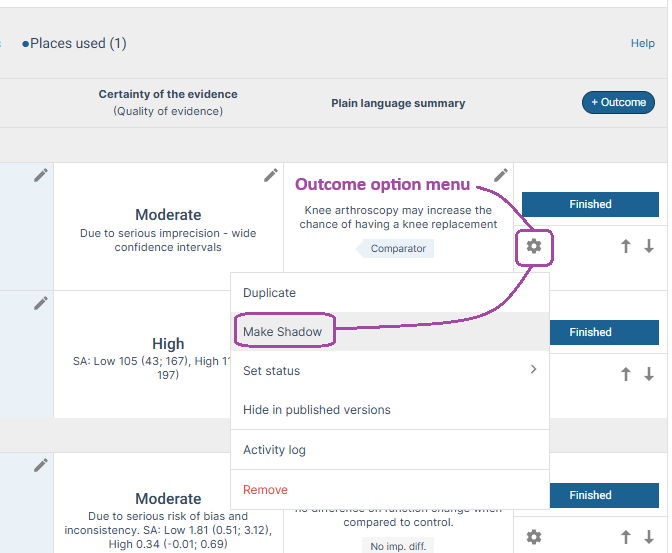
If you want to update outcome data manually, open the outcome option menu and select Make Shadow. Select the outcome(s) you would like to update and continue.
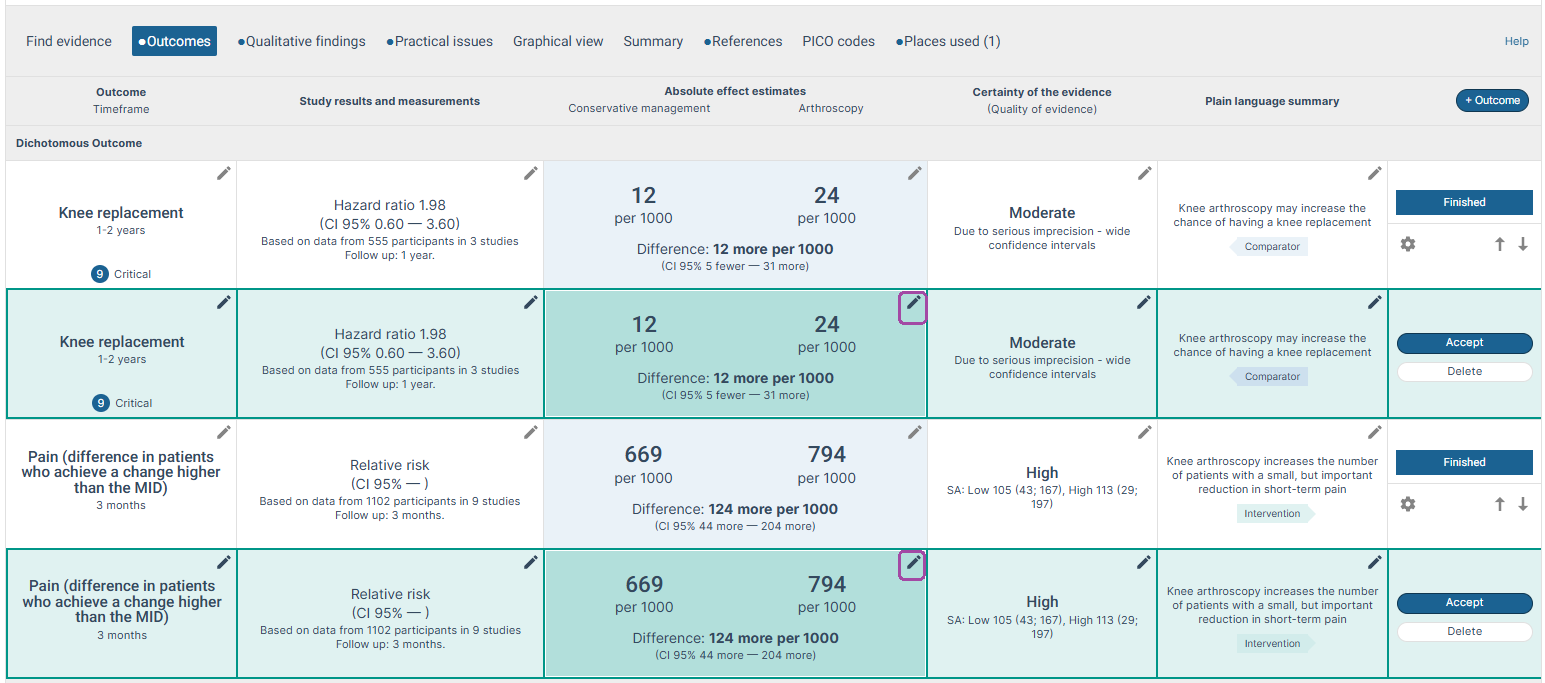
A shadow outcome will be created for each selected outcome as an exact copy of the original outcome data. Shadow outcomes are highlighted in green. Select the pencil icon to edit the shadow outcome and enter your updated information.
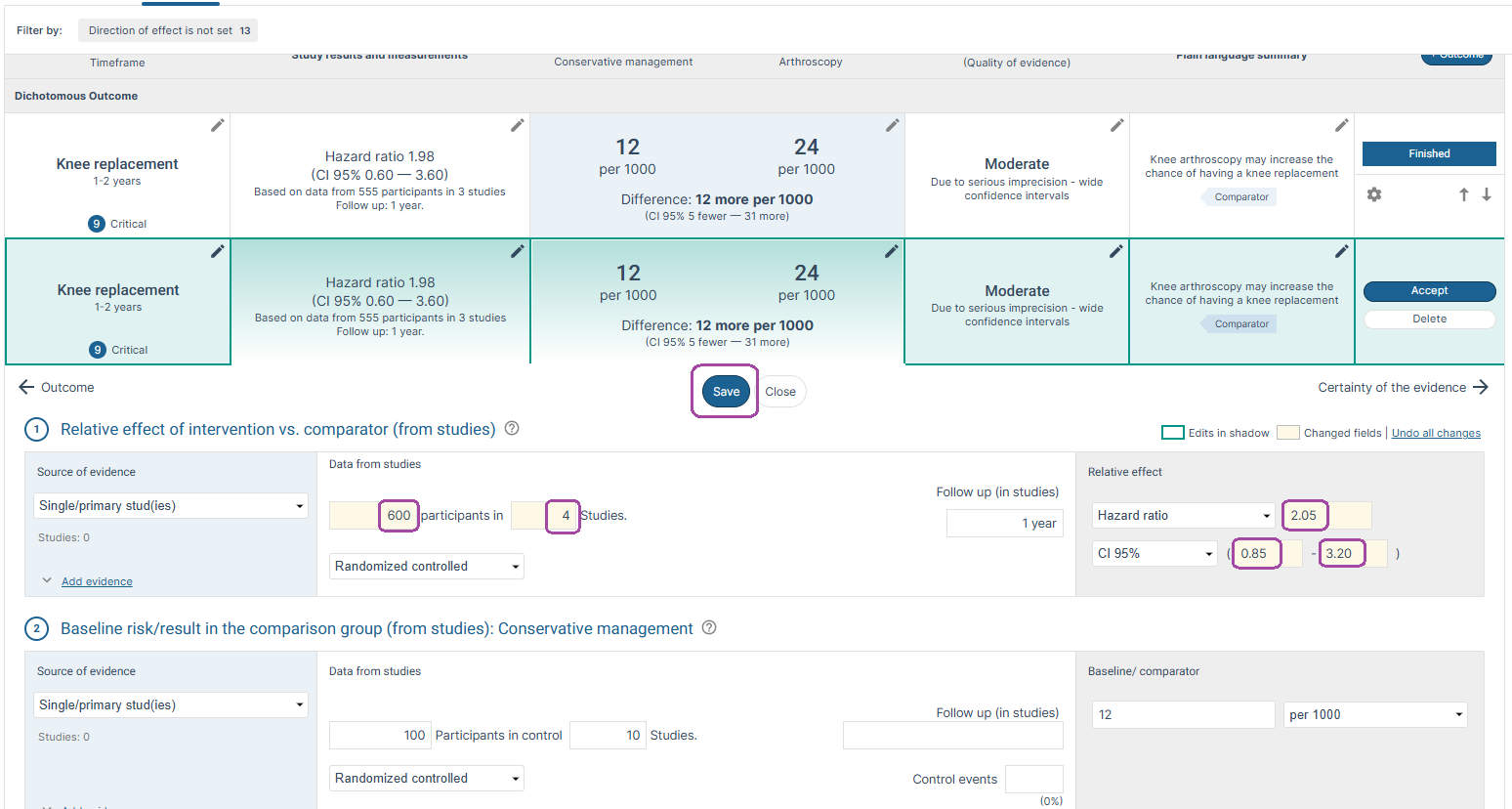
As you edit the data, any changed fields will be highlighted in yellow. When you are satisfied with the updates, select Save. The saved changes will then be outlined in green.
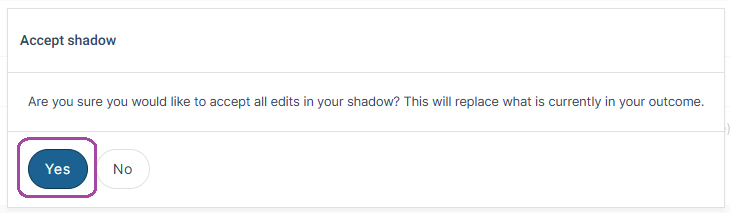
To apply the updates, you must Accept the shadow. A confirmation dialog will appear. Select Yes to confirm the changes. The original outcome data will then be replaced with the updated information.
Open the outcome option menu, then select Make Shadow
Click pencil icon to edit
Click pencil icon to edit
Accept the shadow

Select Yes
Update outcomes with RevMan data
Note September 2026: MAGICapp supports importing data from both RevMan Web and RevMan 5 (.rm5) files; however, RevMan 5 support is primarily intended for legacy reviews. Importing Summary of Findings (SoF) tables from RevMan Web is a new feature, and we continue to refine the integration. If you encounter any issues or have suggestions for improvement, please contact support@magicevidence.org.
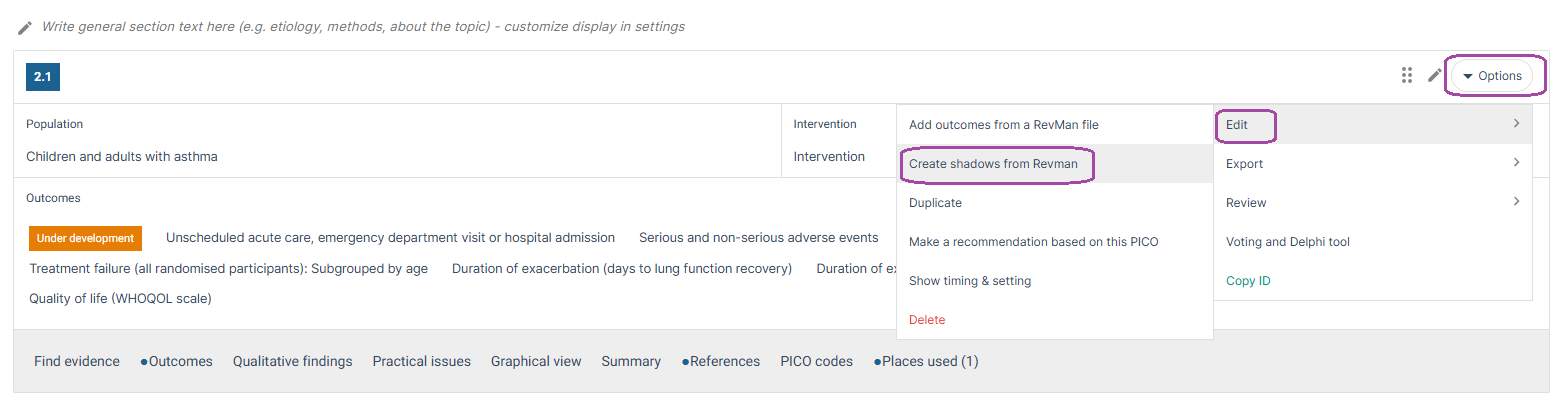
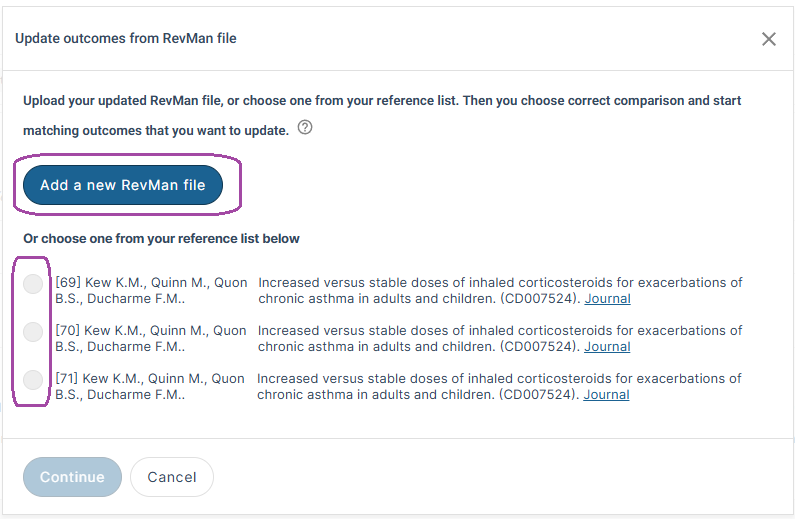
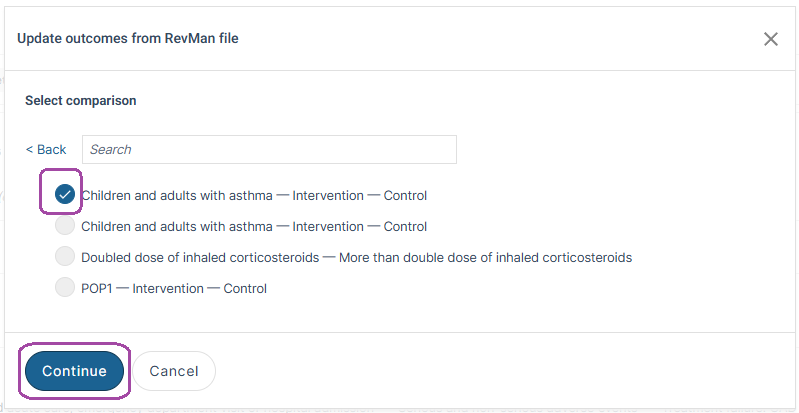
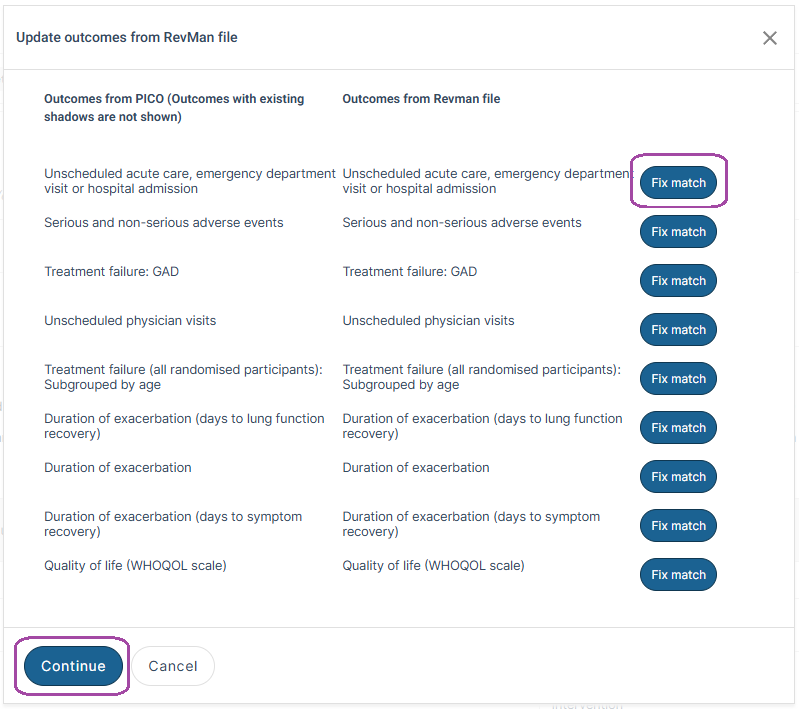
If you want to update a PICO created from RevMan data, open the PICO Options menu, select Edit, and then choose Create shadows from RevMan. Next, either Add a new RevMan file or choose one from your reference list. Select the comparison corresponding to your PICO. MAGICapp will automatically match outcomes from RevMan to the outcomes in your PICO. If you want to select a different outcome, or do not want to create a shadow for a particular outcome, select Fix match and choose the appropriate option from the drop-down menu. When you are satisfied with the matches, select Continue to create the shadow outcomes in green.
You can then review, edit, save, and accept the shadow outcomes using the same process described above for manually created shadow outcomes.
Select PICO options menu, Edit, then Create shadows from RevMan
Add a new RevMan file or choose one from your reference list
Select the comparison corresponding to your PICO
Select Fix match if you want to select a different outcome or no shadow outcome, then select Continue
Last Updated: 24 September 2026
Was this article helpful?
That’s Great!
Thank you for your feedback
Sorry! We couldn't be helpful
Thank you for your feedback
Feedback sent
We appreciate your effort and will try to fix the article