When publishing a guideline, you can choose whether readers access the automatically generated MAGICapp PDF or a custom PDF hosted elsewhere. If you are considering adding a custom PDF because of formatting or layout issues in the MAGICapp PDF, we recommend first reviewing our article Troubleshooting Issues with PDF Formatting, which may help you resolve the issue without creating a custom PDF.
Add a custom PDF link when publishing
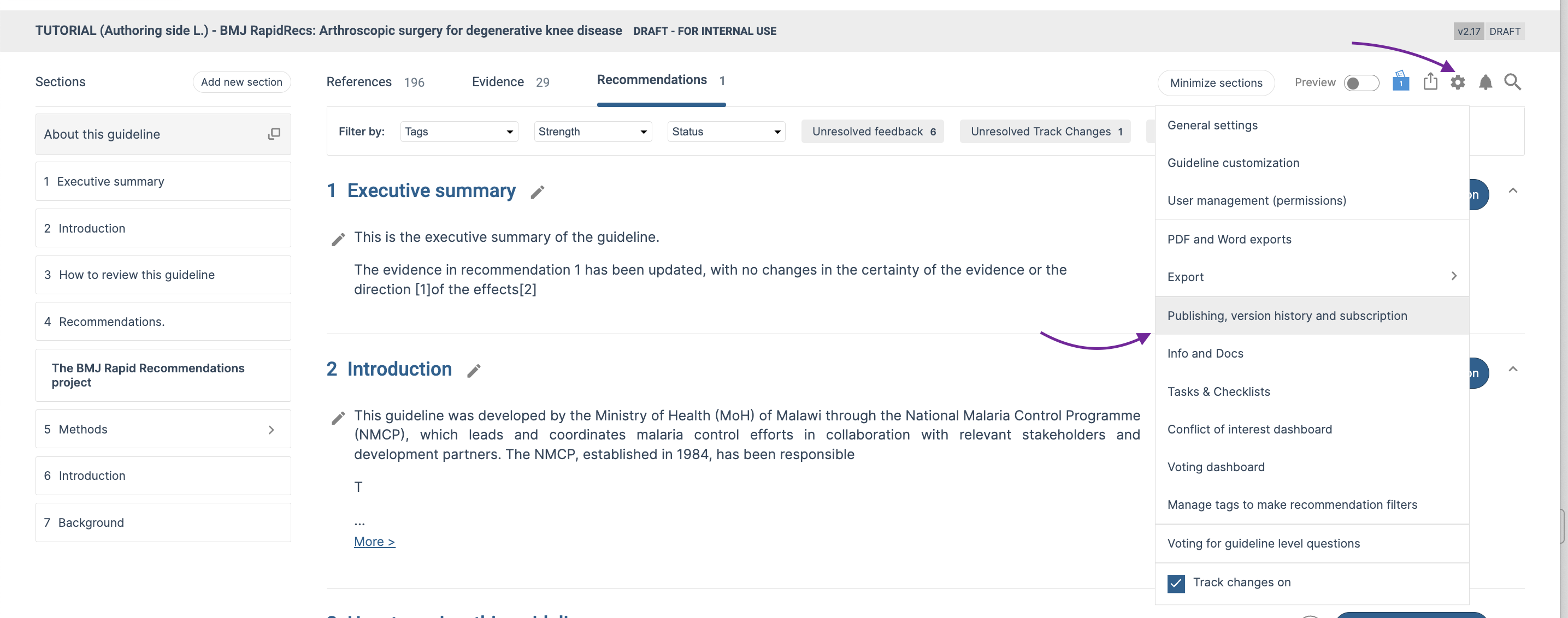
Go to Settings > Publishing, version history and subscription, then select Publish new version.
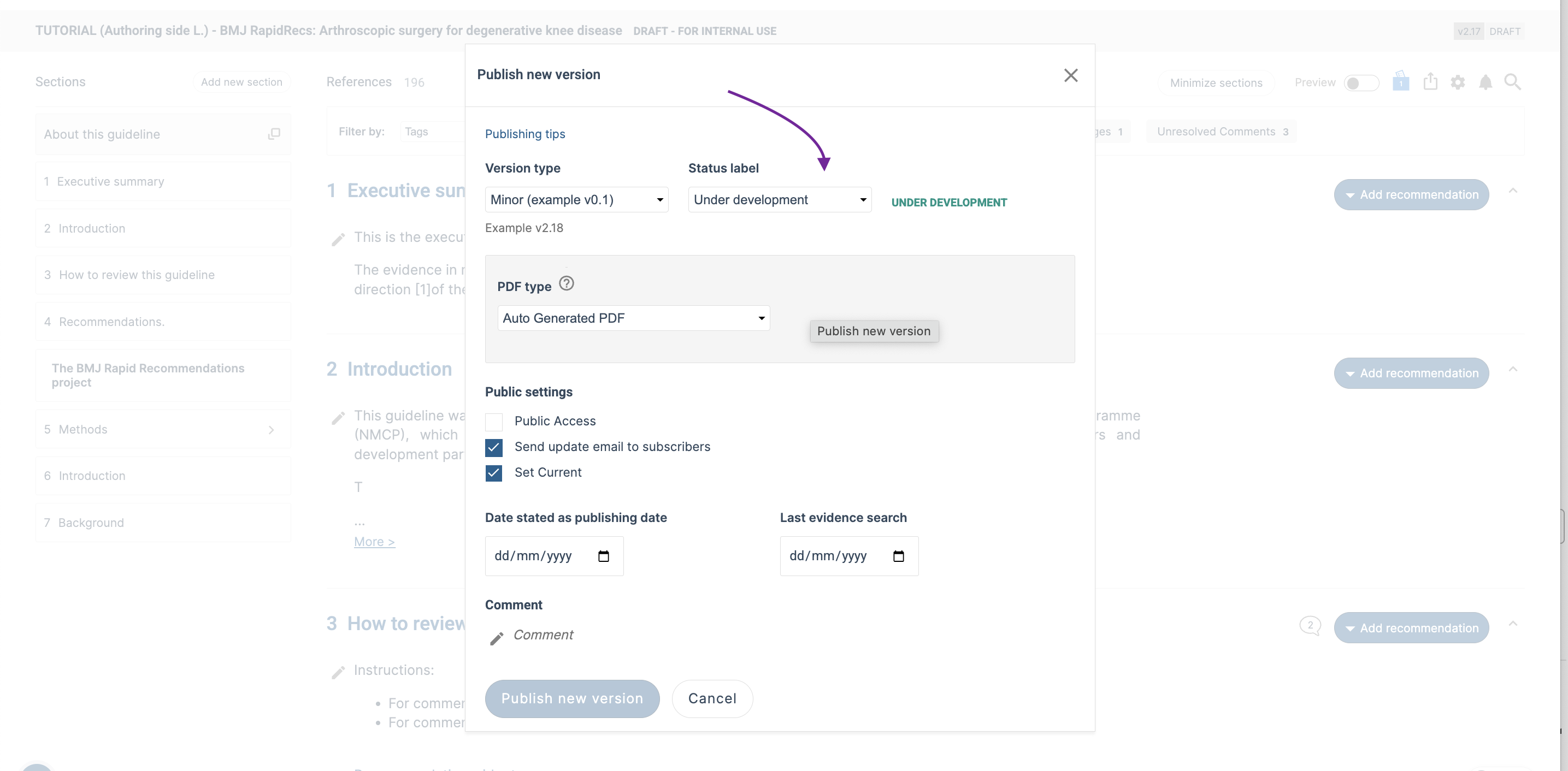
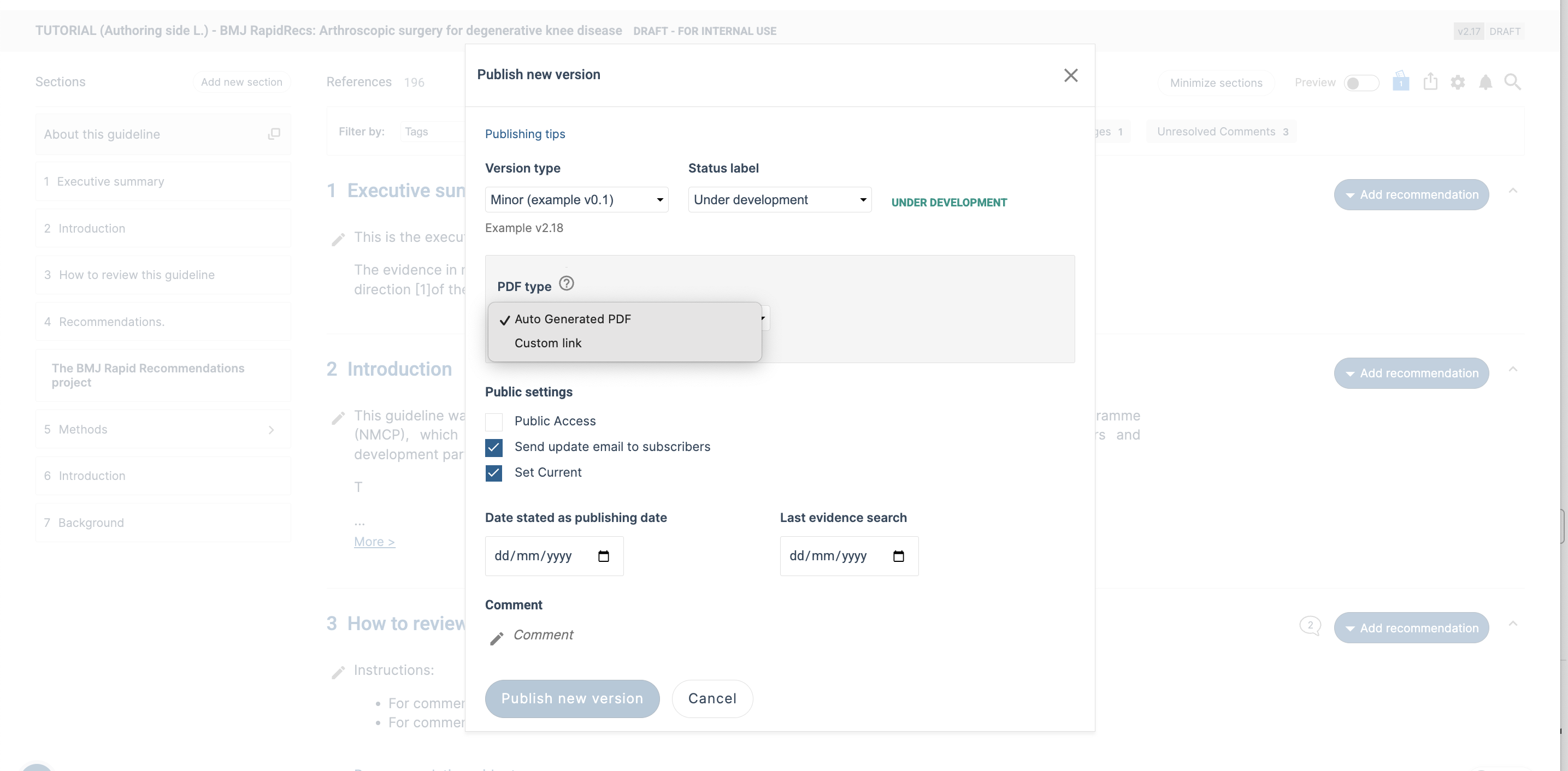
In the PDF section, choose whether to:
- Use the automatically generated PDF, or
- Add a link to a custom PDF
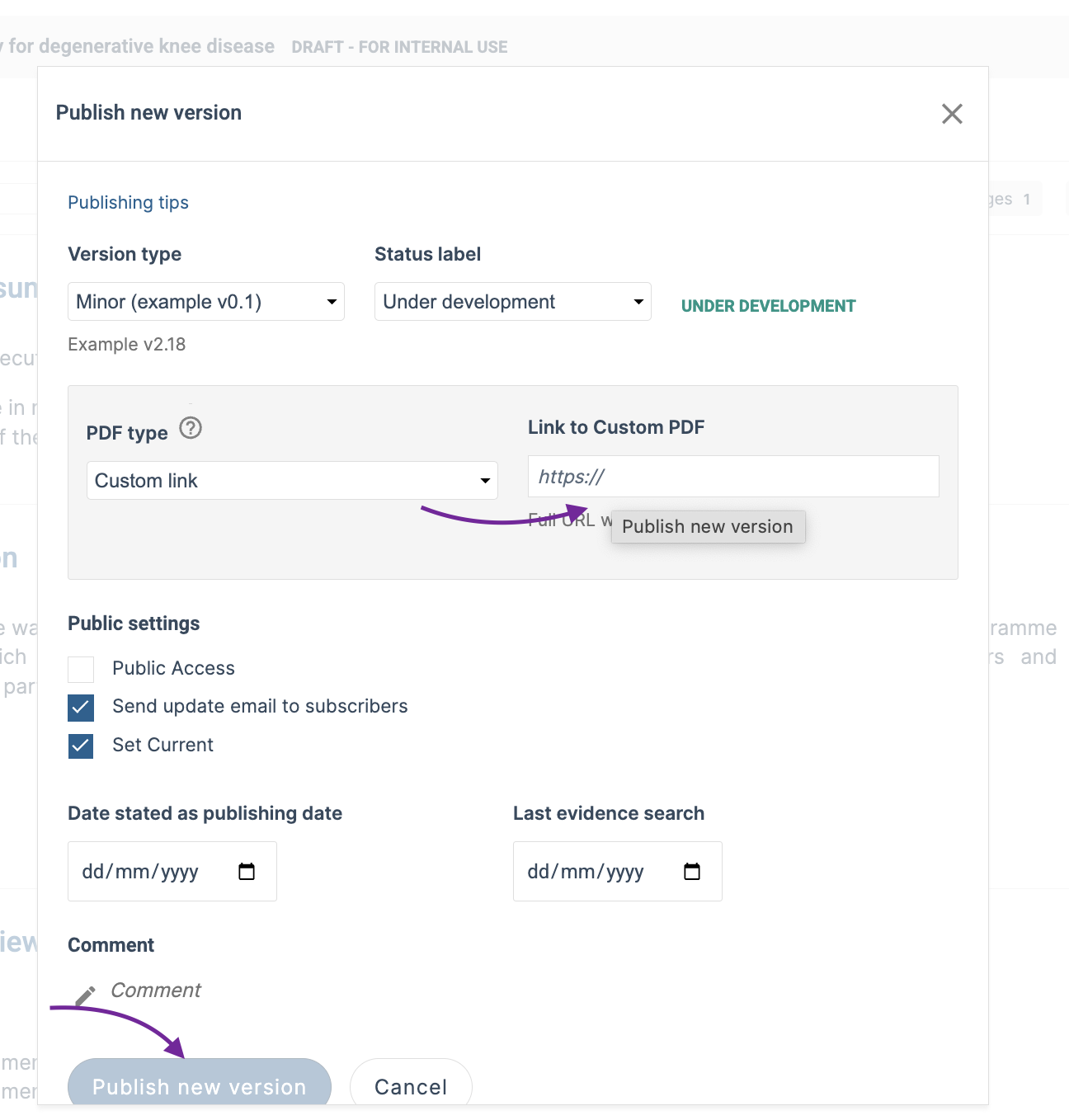
If you add a custom PDF link, readers who select PDF in the published guideline will be directed to the link you provided.
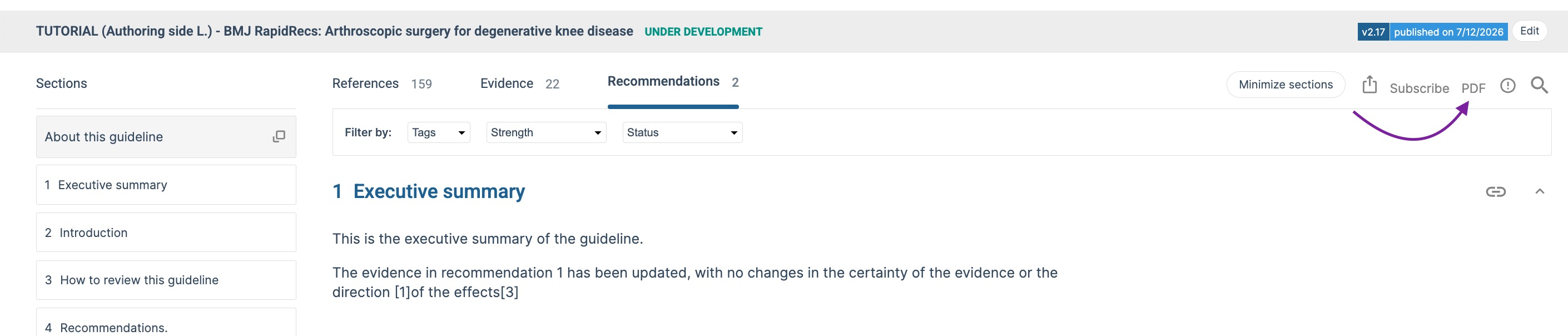
Update the PDF link after publication
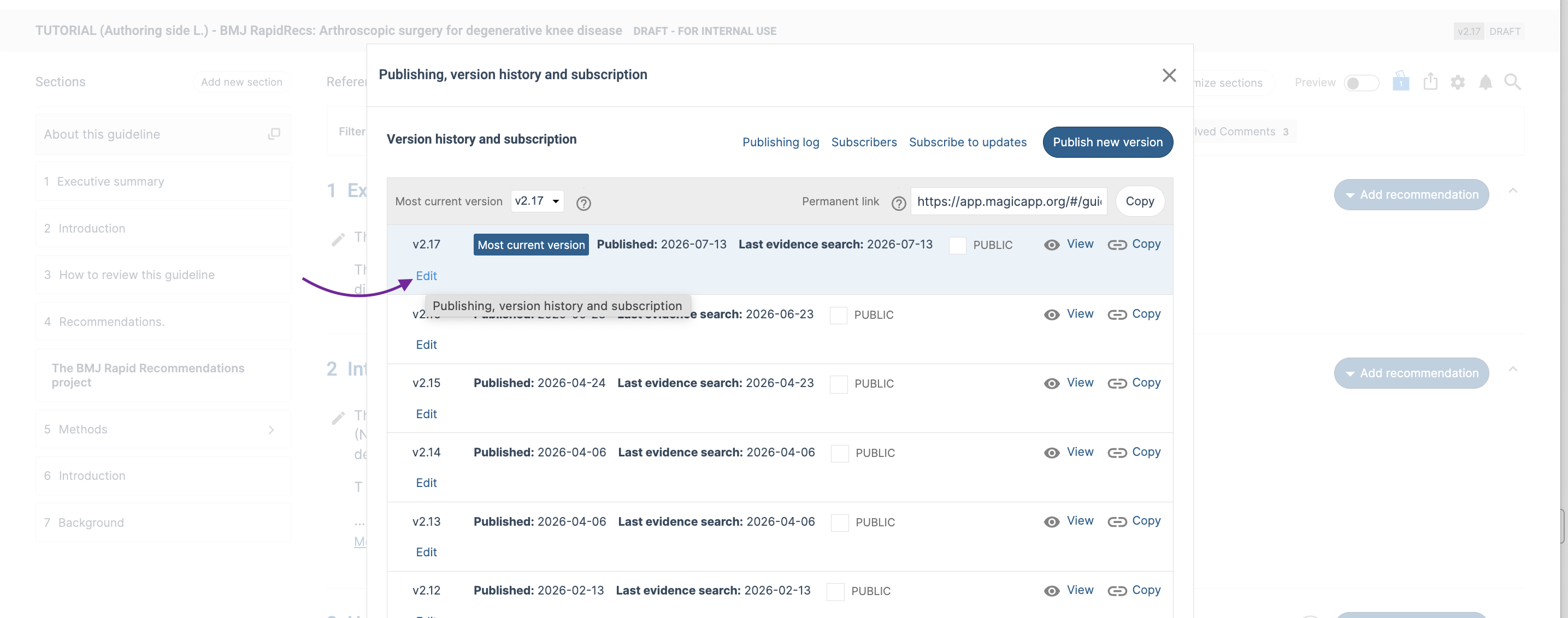
You can also add or update the custom PDF link after the guideline has been published. Enter Edit mode, then go to Settings > Publishing, version history and subscription. Find the published guideline version and click Edit.
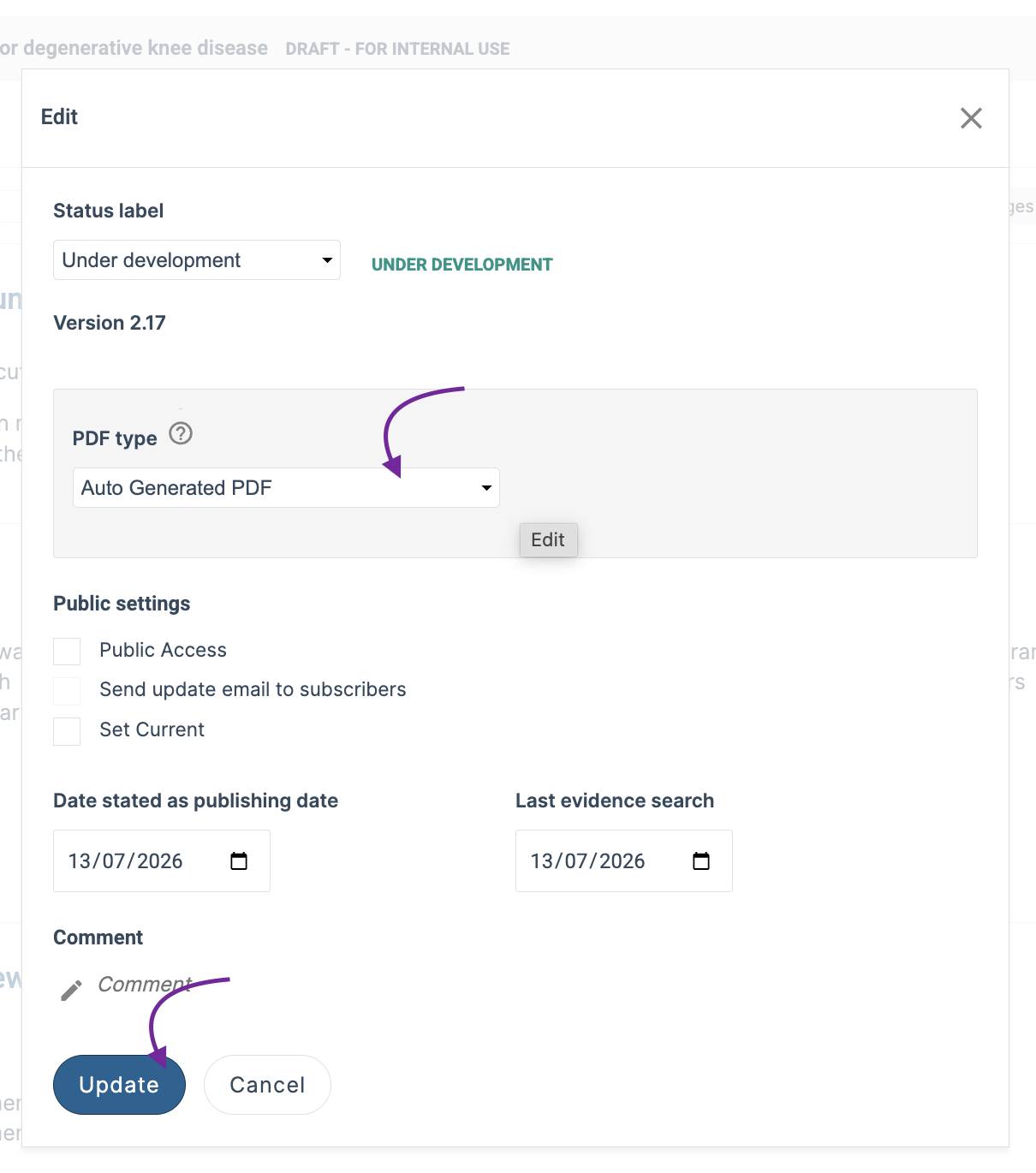
Update the information in the PDF section and save your changes. The updated PDF link will then be available to readers without requiring you to publish a new guideline version.
Last updated: 06 October 2026
Was this article helpful?
That’s Great!
Thank you for your feedback
Sorry! We couldn't be helpful
Thank you for your feedback
Feedback sent
We appreciate your effort and will try to fix the article