Issues can occasionally occur in PDFs from MAGICapp. Common examples include tables extending beyond the page width, misaligned headings, unexpected blank space between sections, or content appearing differently in the PDF compared with the online guideline.
Many of these issues can be resolved by reviewing formatting before generating the PDF, and understanding how content is arranged within exported PDFs.
Summary of best practices for creating PDFs
The following recommendations can help improve the appearance of PDFs:
- Review your export settings before generating the PDF, as some settings may affect content layout, page breaks, and white space. How do I make a PDF version of my guideline (with or without publishing)? explains the available PDF settings and export options for customizing your PDF.
- Avoid excessively wide tables, and reduce the number of columns when possible.
- Use percentage-based table widths rather than fixed pixel widths.
- Ensure table headers are switched on.
- Avoid unnecessarily long remarks or large content blocks, which may contribute to excessive white space in PDFs.
- Use the 'Remove Formatting' tool when pasting content from Word or other sources, or paste as plain text.
- Address formatting inconsistencies in MAGICapp, as they may also appear in exports.
- Generate and review test PDFs after making significant formatting changes, and before publication.
If you require formatting, branding, or layout changes that cannot currently be achieved within MAGICapp, you may also choose to upload and publish your own custom PDF. Details of how to do this are in How do I link a custom PDF to a published guideline?
Common PDF issues and how to address them
- Tables extend beyond the page width
- Table headers do not repeat across pages in the PDF
- Table header text has unexpected alignment
- Headings appear misaligned in the PDF
- Large blank spaces appear in the PDF
- Fonts, spacing, or formatting look inconsistent
Tables extend beyond the page width
Issue
A table appears correctly in MAGICapp but extends beyond the page margins in the exported PDF. This may also cause nearby headings or content to appear misaligned.
Possible cause
The table has been set to a fixed width using pixel values. While this may appear acceptable on screen in MAGICapp, fixed-width tables can exceed the available space in a PDF.
Recommended solution
Check the table properties and:
- Set the table width to 100% (or less if preferred).
- Avoid using fixed pixel widths.
- Regenerate the PDF after updating the table.
This will allow the table to adapt to the available page width in the PDF.
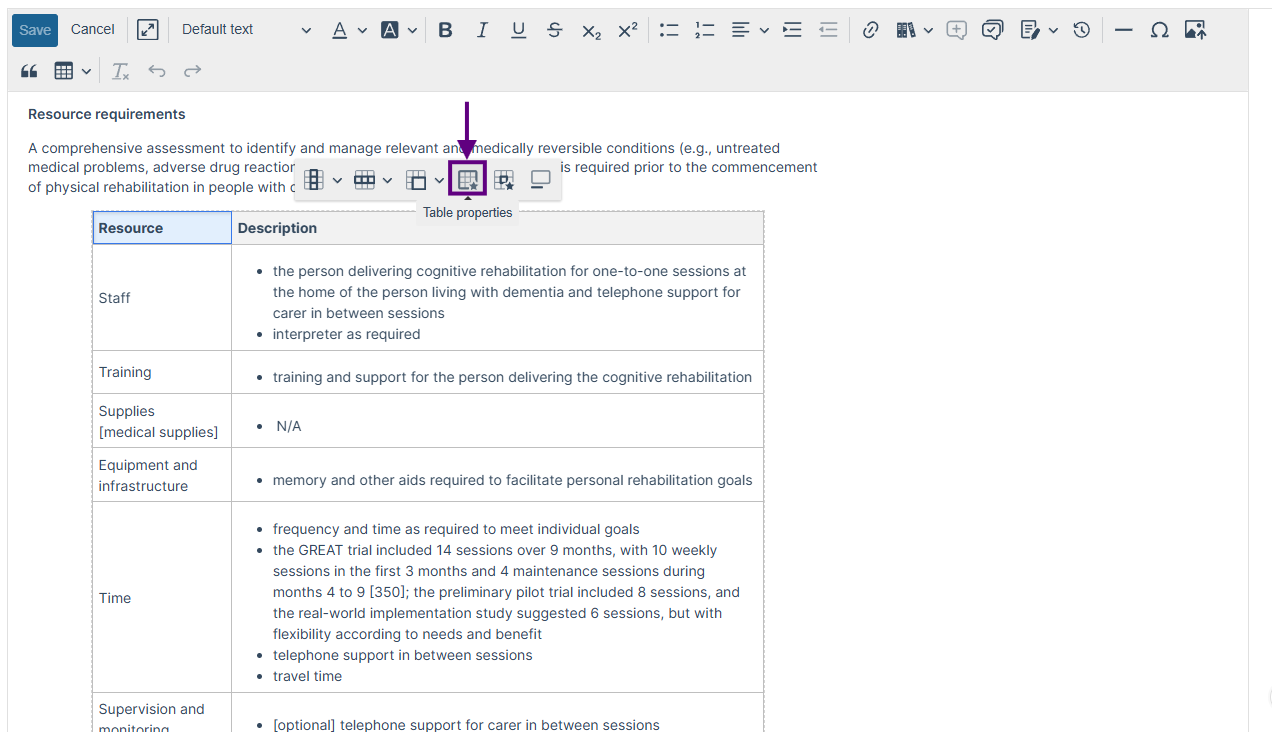
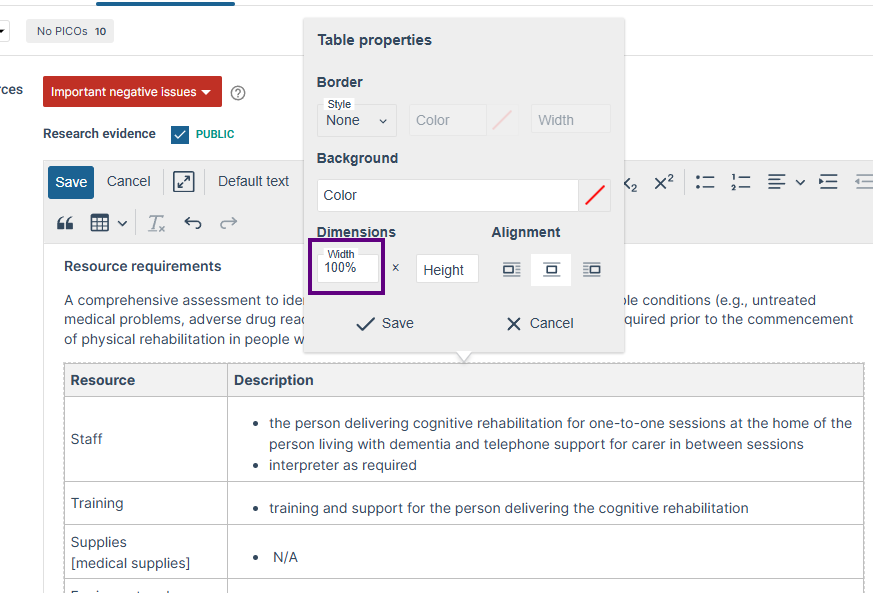
Table headers do not repeat across pages in the PDF
Issue
Table column headers do not repeat on subsequent pages in the PDF.
Possible cause
The table header row has not been set as a Header row.
Recommended solution
Set the first row of the table as a Header row. Click inside any cell to open Table options, then select Row and enable Header row. Header rows are automatically repeated at the top of each page in PDF exports when a table spans multiple pages.
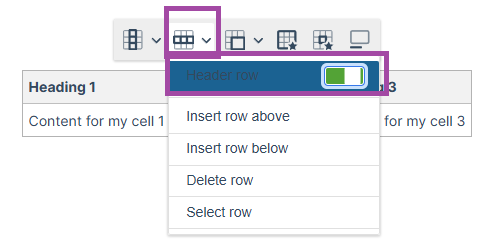
Table headers do not repeat across pages in the PDF
Issue
Table column headers do not repeat on subsequent pages in the PDF.
Possible cause
The table header row has not been set as a Header row.
Recommended solution
Set the first row of the table as a Header row. Click inside any cell to open Table options, then select Row and enable Header row. Header rows are automatically repeated at the top of each page in PDF exports when a table spans multiple pages.
Table header text has unexpected alignment
Issue
Table header text appears right-aligned or displays differently in the PDF than expected.
Possible cause
Certain alignment settings within the editor may not always render as expected in the PDF.
Recommended solution
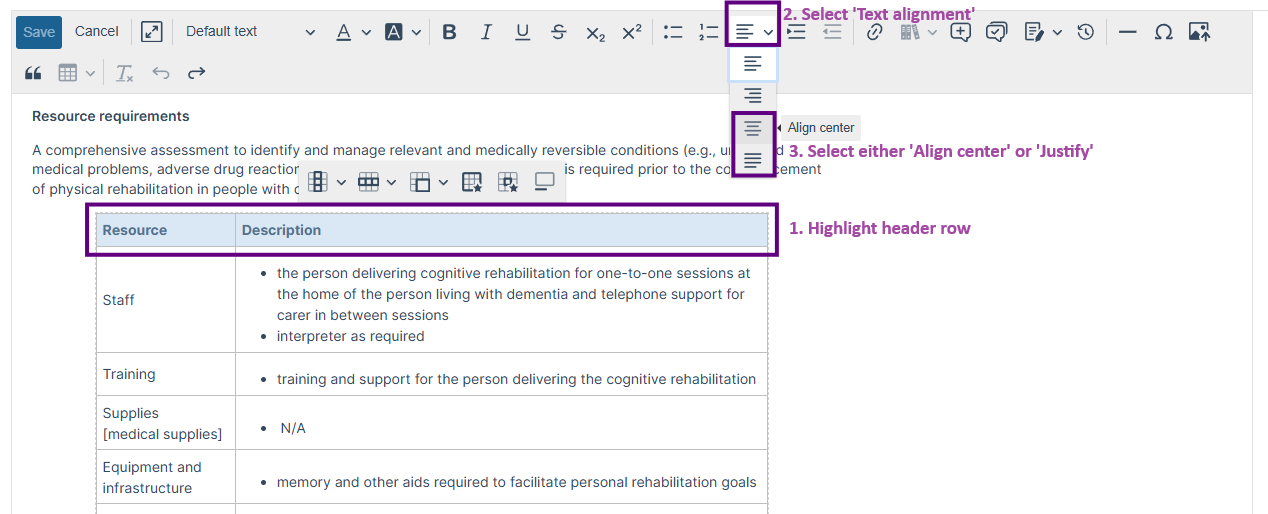
For table headers, use:
- Center alignment, or
- Justified alignment
These settings typically provide the most consistent results in generated PDFs.
Headings appear misaligned in the PDF
Issue
Section headings or subheadings appear indented differently in the PDF, even though they appear aligned in MAGICapp.
Possible cause
A table elsewhere in the section may be overflowing the page width. In some cases, an oversized table can affect the alignment of nearby content in the generated PDF.
Recommended solution
Review all tables within the affected section and:
- Ensure table widths are set to 100% or less (see screenshots above).
- Remove any unnecessary columns that make the table excessively wide.
- Regenerate the PDF.
If the table is the cause, correcting the width should also resolve the heading alignment issue.
Large blank spaces appear in the PDF
Issue
A page contains a large amount of blank space before the next recommendation or section begins.
Possible causes
To improve readability, MAGICapp attempts to keep recommendation text and associated remarks together when generating PDFs. If a recommendation and its remarks cannot fit in the remaining space on a page, the entire block may be moved to the next page, resulting in white space on the previous page.
In addition, the PDF customization setting Start all sections on a new page may introduce additional white space. When this setting is enabled, MAGICapp will begin each section on a new page, which can leave unused space at the end of the previous page.
Recommended solution
Consider:
- Shortening lengthy remarks where possible.
- Reviewing whether some content can be moved elsewhere in the guideline.
- Reviewing your PDF customization settings and, where appropriate, disabling Start all sections on a new page to reduce unnecessary white space.
Fonts, spacing, or formatting look inconsistent
Issue
Text appears in a different font, has unusual spacing, or displays differently from surrounding content in the PDF.
Possible cause
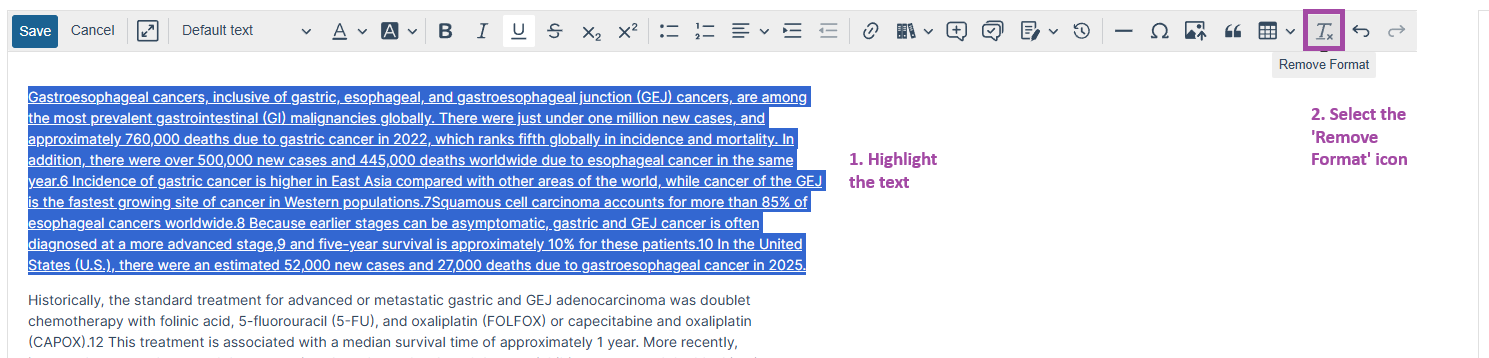
Formatting copied from Microsoft Word, web pages, or other applications can introduce hidden formatting that is carried into exports. This can sometimes be difficult to notice in MAGICapp, but appear more prominently in the PDF.
Recommended solution
When adding content to MAGICapp:
- Use the Remove Formatting tool where appropriate, or paste as plain text.
- Review pasted content before publication.
- Avoid copying unnecessary styles from external documents.
- Generate a test PDF early in the development process to identify formatting issues.
Still having problems?
If PDF formatting issues persist after trying the suggestions above, please contact the MAGIC support team on support@magicevidence.org and include:
- A link to the guideline.
- A description of the issue.
- The page number(s) affected in the PDF.
- Screenshots showing both the MAGICapp view and the PDF output.
Last updated: 12 October 2026
Was this article helpful?
That’s Great!
Thank you for your feedback
Sorry! We couldn't be helpful
Thank you for your feedback
Feedback sent
We appreciate your effort and will try to fix the article