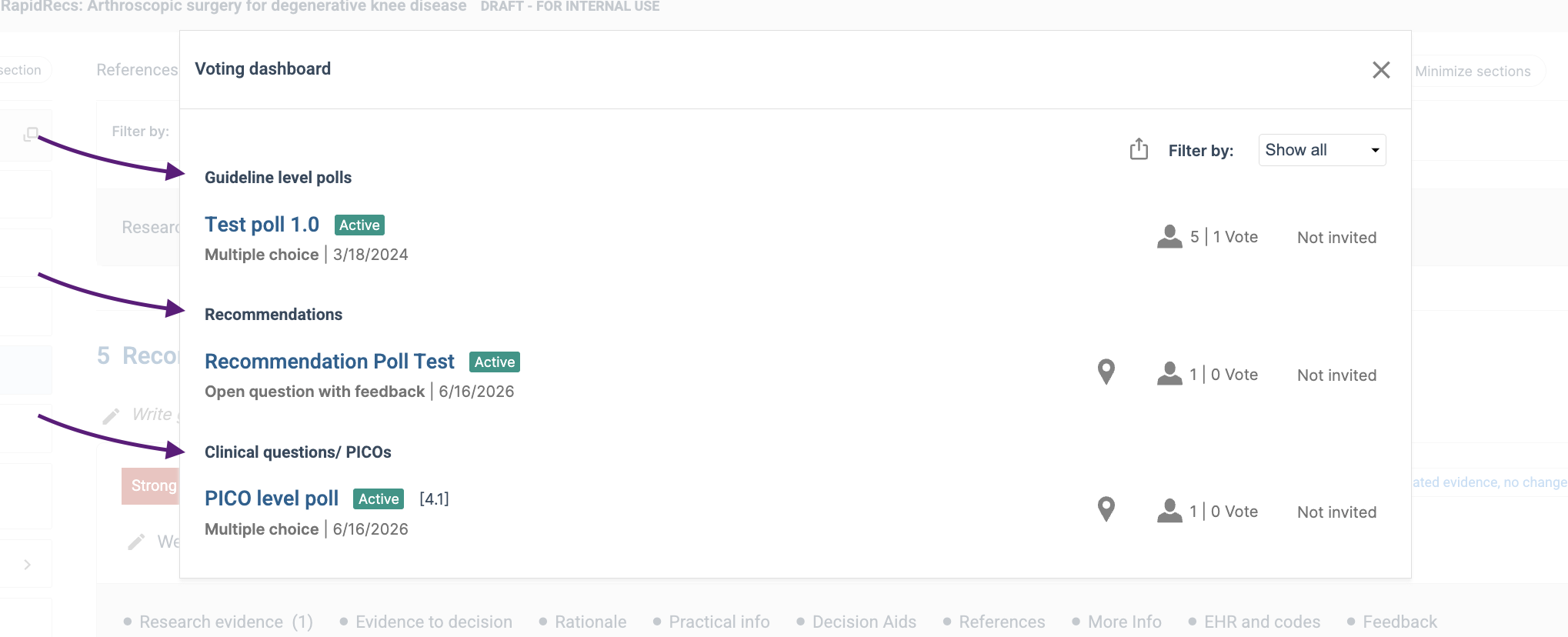
The Voting Dashboard provides a central overview of all voting activity within a guideline, making it easier to review participation and monitor voting progress across your project.
The dashboard displays all polls and voting items created at different levels of the guideline, including:
- Guideline level polls
- Recommendation level polls
- PICO level polls
This allows administrators and authors to quickly see where voting has taken place, review participation, and identify outstanding voting activities.
Accessing the Voting Dashboard
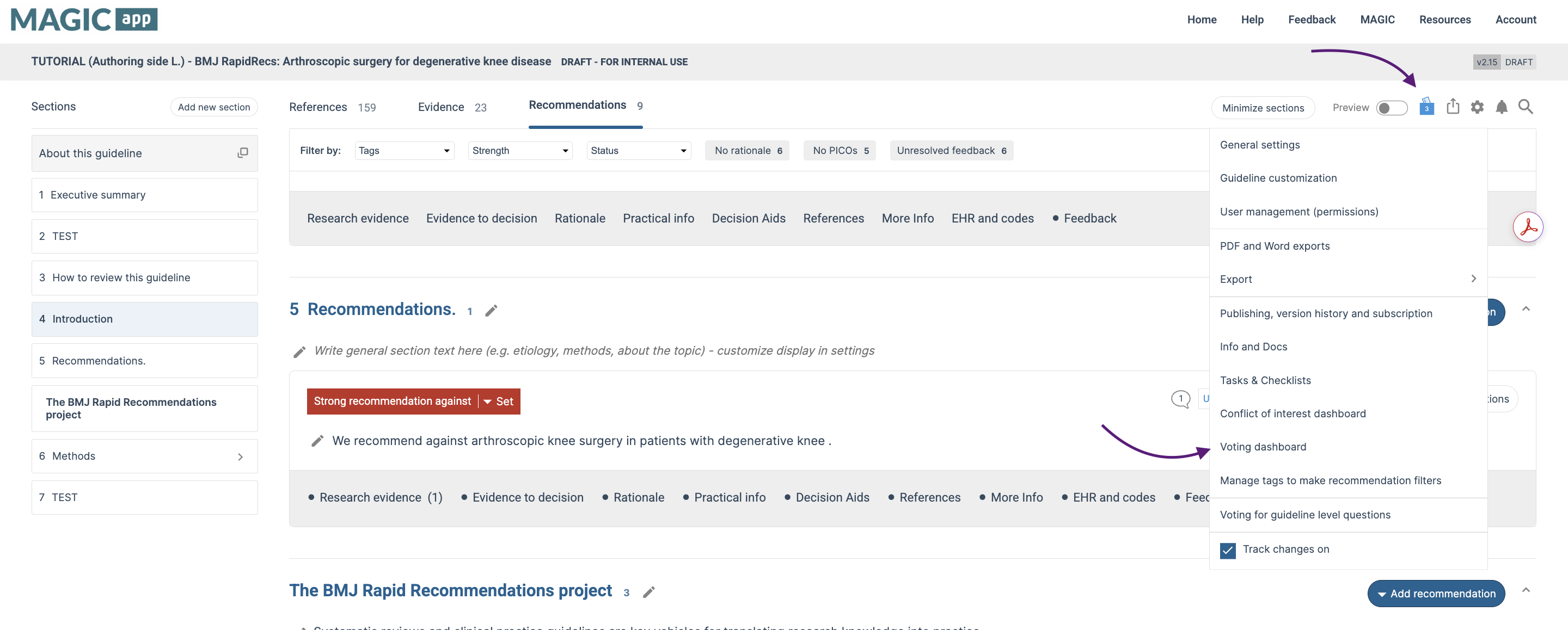
You can access the Voting Dashboard in two ways:
Option 1: From the Guideline Settings Menu: Open the guideline settings menu and select "Voting Dashboard".
Option 2: From the Voting Icon: When a guideline contains at least one poll, a Voting icon will appear next to the Preview button. Clicking this icon will take you directly to the Voting Dashboard.
What You Can See
The Voting Dashboard provides an overview of:
- All polls within the guideline
- The location of each poll (Guideline, Recommendation, or PICO level)
- Voting participation and progress
- Voting results and responses
This centralized view eliminates the need to navigate through individual sections of the guideline to find and review voting activities.
Learn More
Access here for more information about creating and managing polls in MAGICapp
Last Updated: 16 June 2026
Was this article helpful?
That’s Great!
Thank you for your feedback
Sorry! We couldn't be helpful
Thank you for your feedback
Feedback sent
We appreciate your effort and will try to fix the article