As well as autogenerated figures in MAGICapp, and adding figures to the main text, you can also add a figure as evidence for a PICO. For example, a forest plot from a systematic review.
To do this, ensure you are working in the Evidence tab in MAGICapp, and select Outcomes under your PICO of interest (Fig 1). Select the pencil icon in the relative or absolute effect estimates, select Add evidence (Fig 2), then select Add image (Fig 3). Choose your file then select Upload and attach (Fig 4). Finally, you can edit the legend for the figure by clicking on the pencil icon (Fig 5).
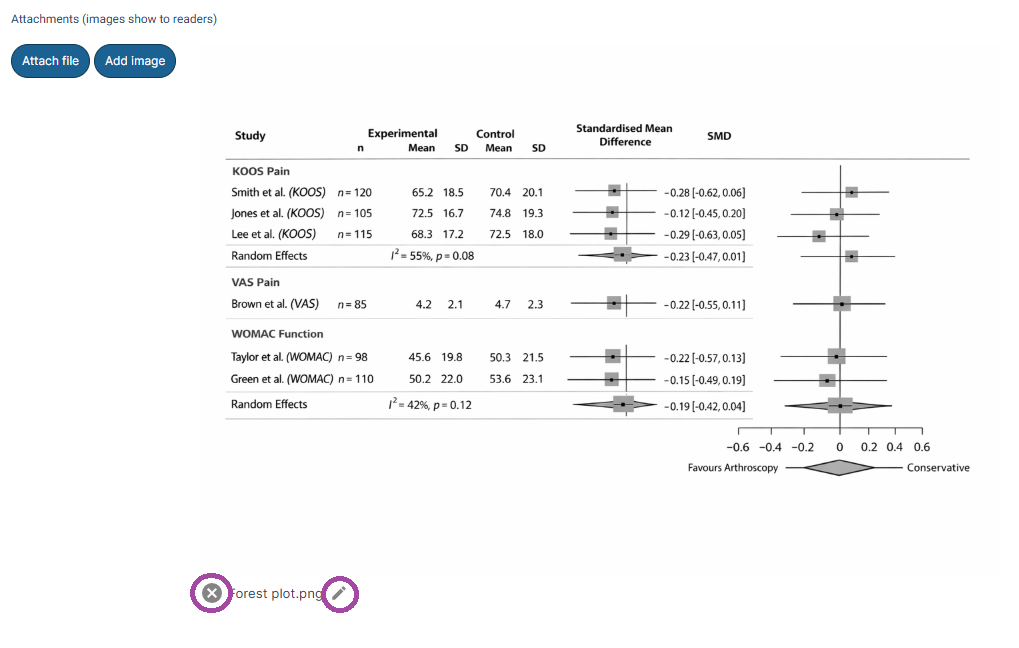
To remove a figure associated with a PICO, click on the cross icon next to the figure legend (Fig 5).
Important: If you reproduce a figure from a published source, you are responsible for securing permissions and providing correct attribution. Requirements vary by publisher; consult the relevant publisher’s guidance.
Fig 1: On the evidence tab, within the PICO of interest, select Outcomes.
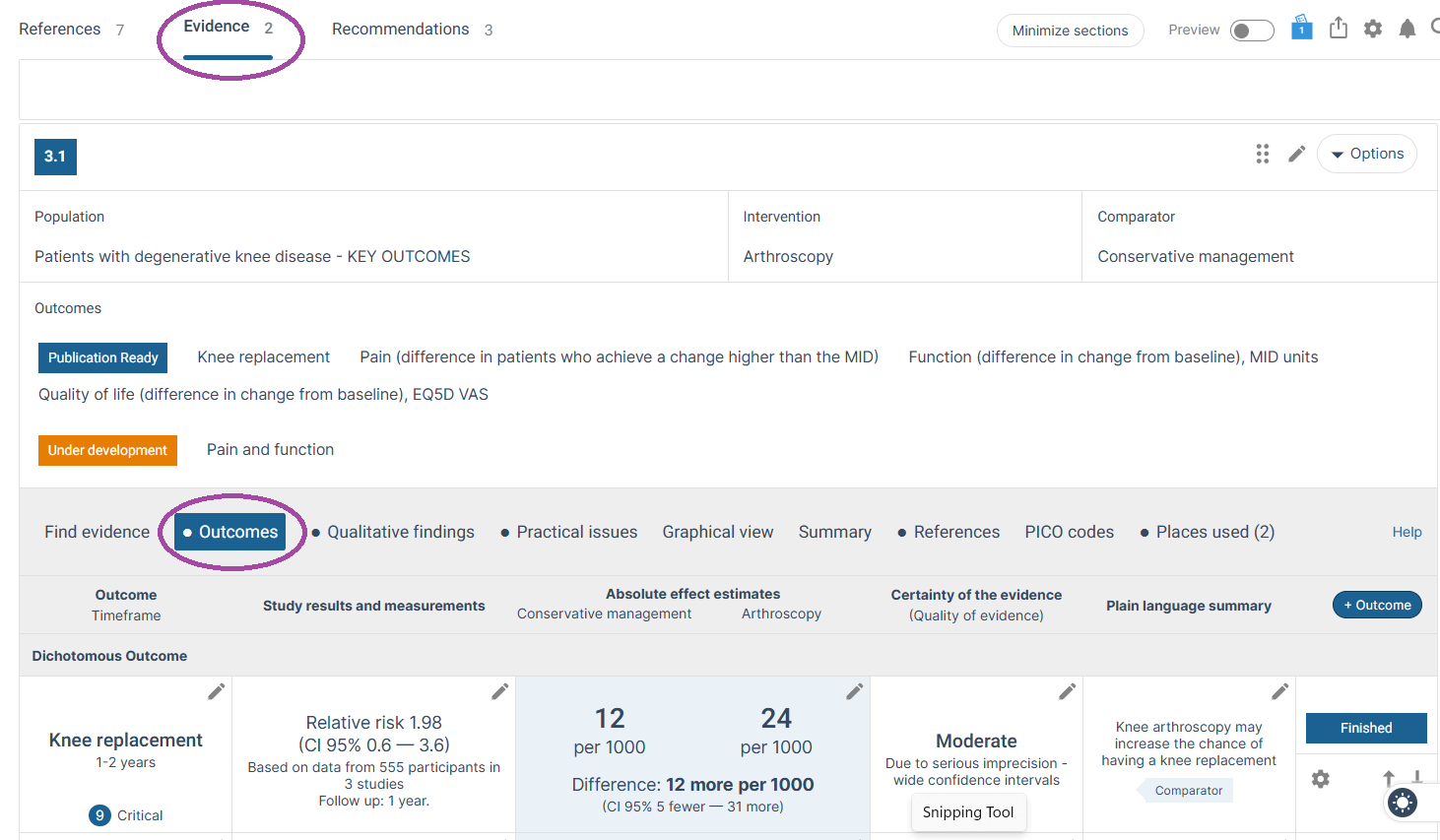
Fig 2: Select the pencil icon in the relative or absolute effect estimates, then select ‘Add evidence’.
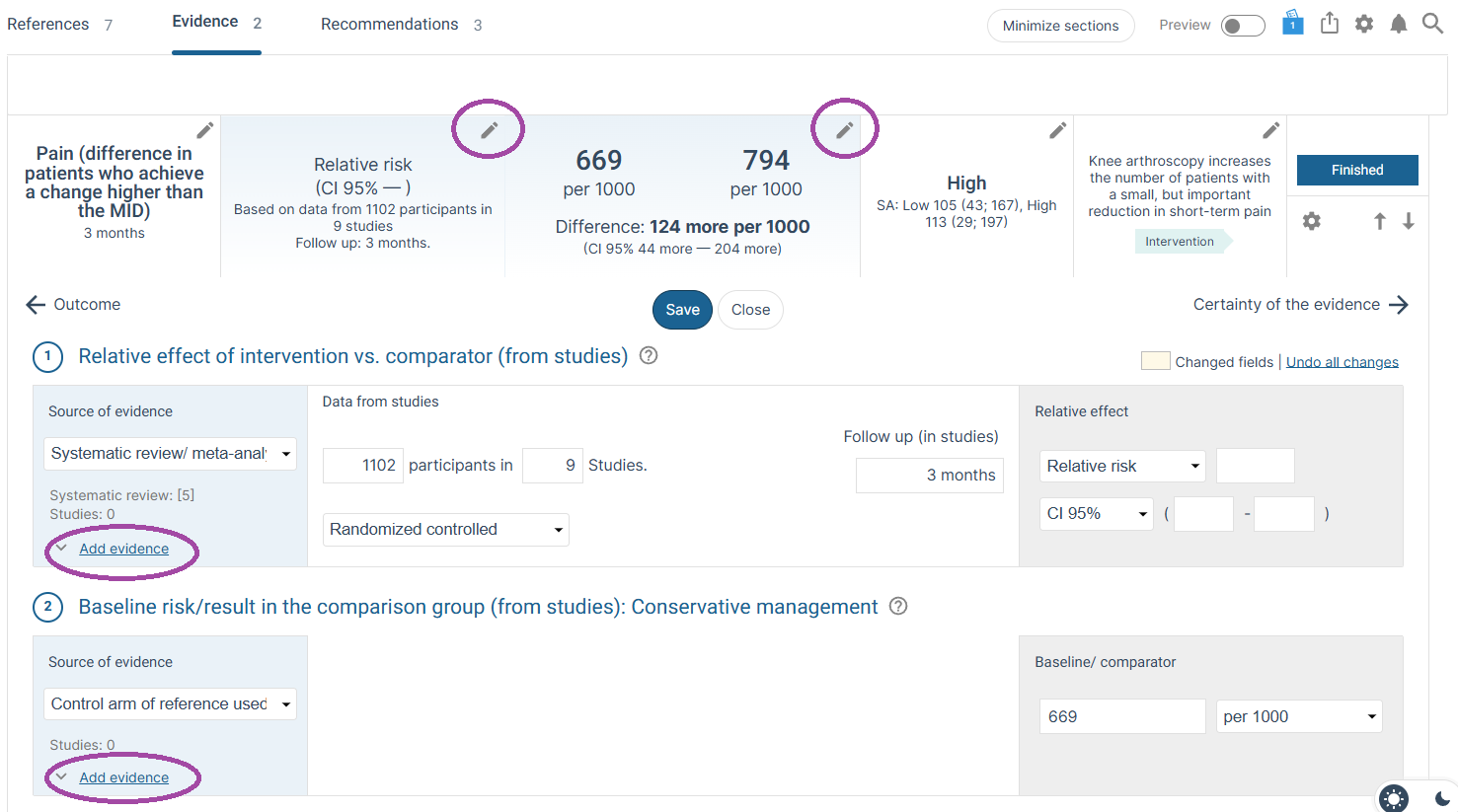
Fig 3: Select ‘Add image’.
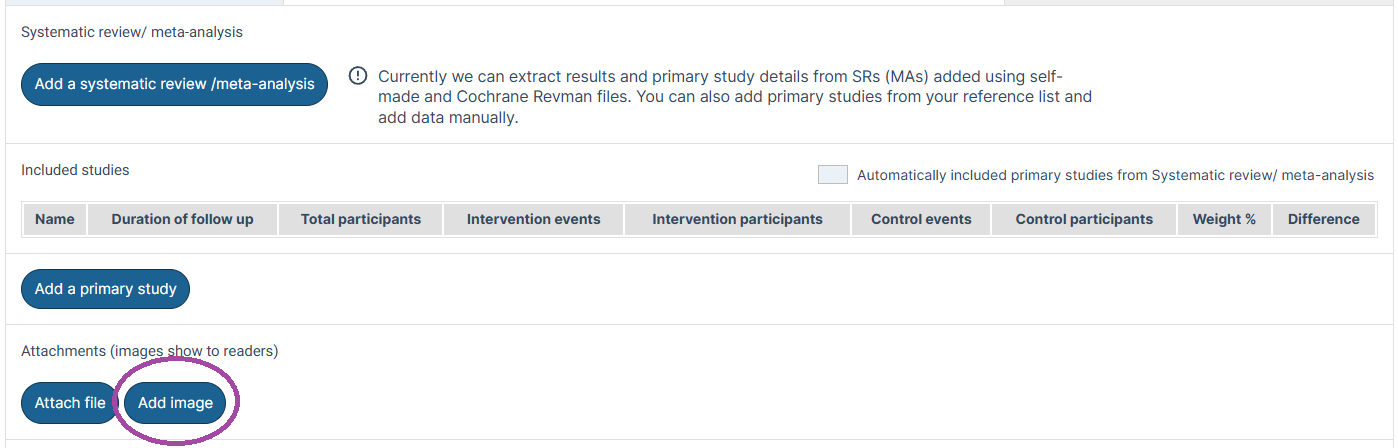
Fig 4: Choose your file then select ‘Upload and attach’.
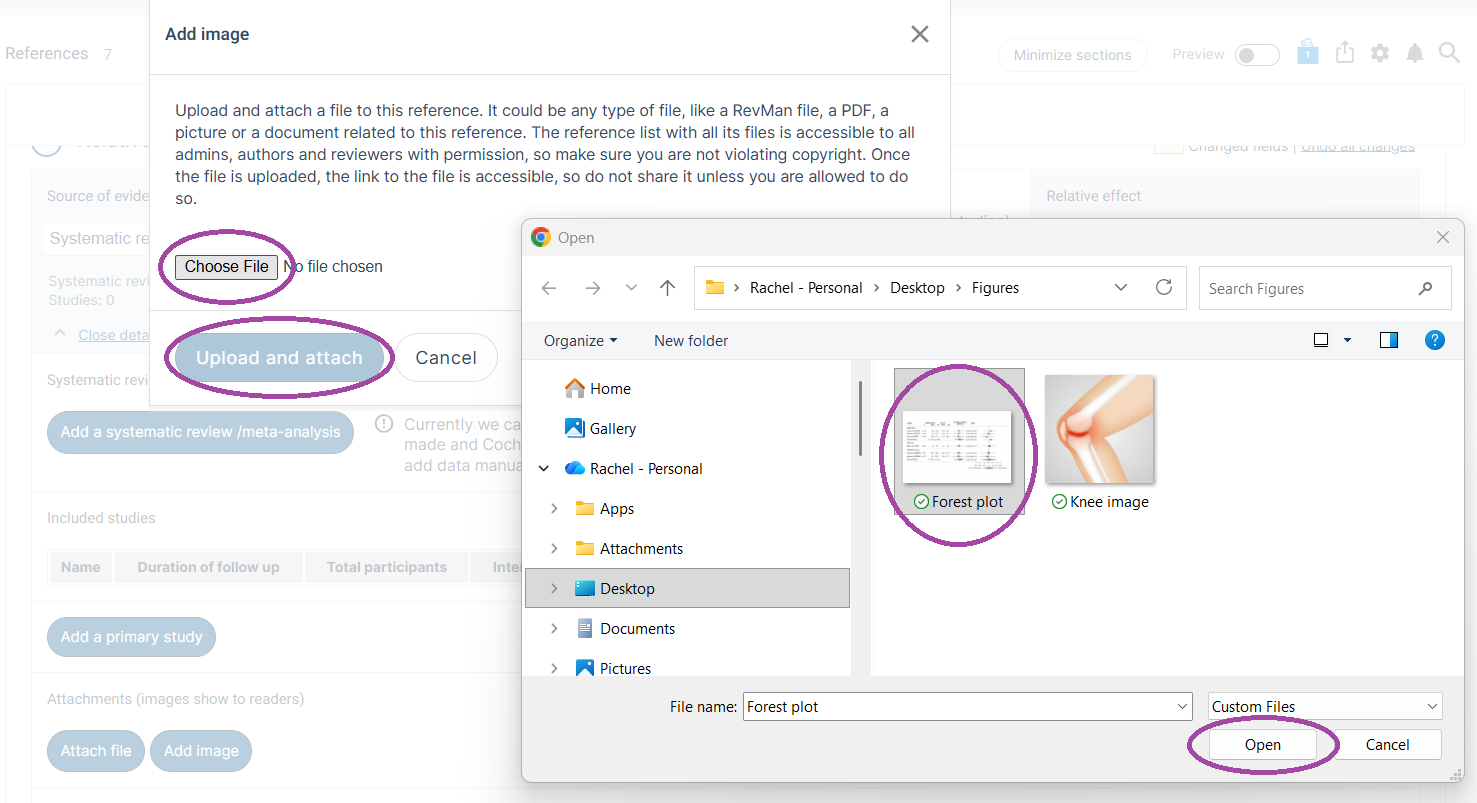
Fig 5: Click on the pencil icon to edit the figure legend. To remove the image, click on the cross.
See also: Trouble shooting issues with figures
Added: 07 May 2026
Was this article helpful?
That’s Great!
Thank you for your feedback
Sorry! We couldn't be helpful
Thank you for your feedback
Feedback sent
We appreciate your effort and will try to fix the article