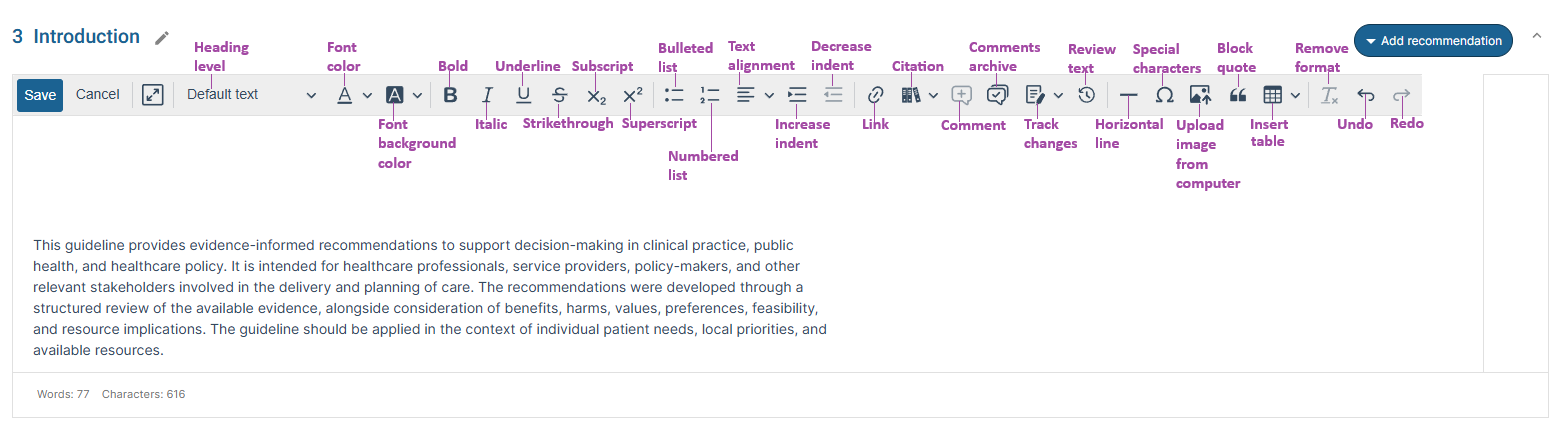
MAGICapp text editors allow you to add and format text, hyperlinks, citations, images, tables and other content throughout your guideline. Each text editor includes a toolbar at the top with formatting and editing options, as shown below.
Use the links below to learn more about specific toolbar features and access related guidance on common editing and formatting tasks.
Apply heading level
Headings help separate content into distinct topics, making it easier to read and scan. To add a heading level, select the text and choose the desired heading level from the dropdown menu.
Add, remove or edit links
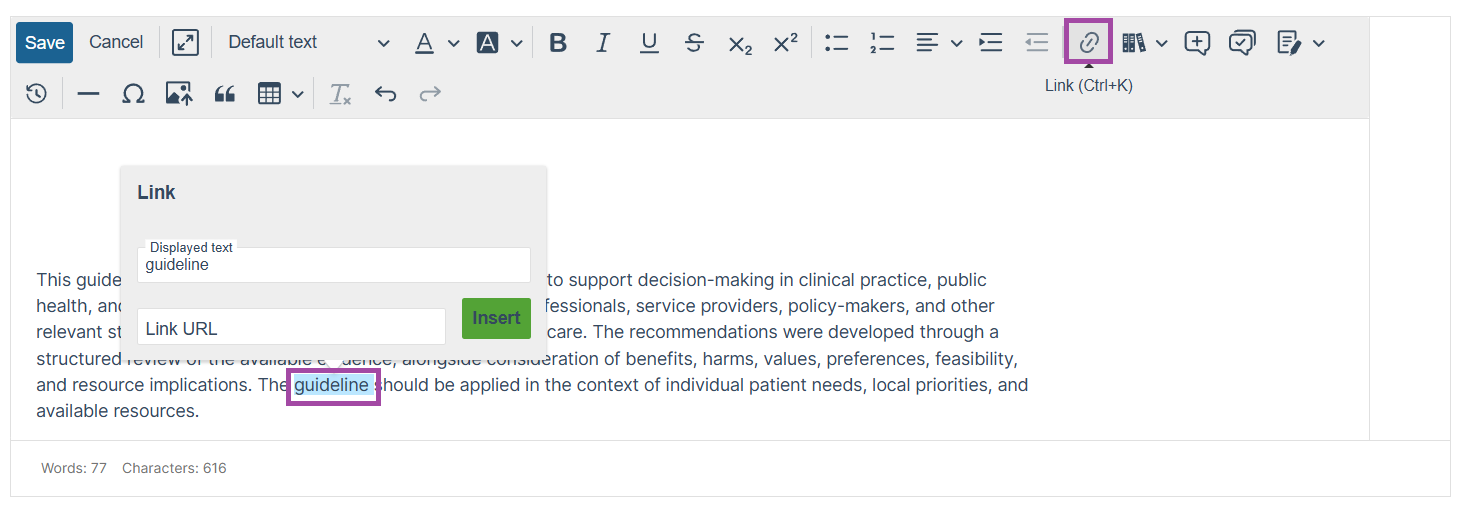
- To add a link, select the text, click the link icon, paste your URL into the box, and select 'Insert'.
- To remove a link, hover over the link and select 'Unlink'.
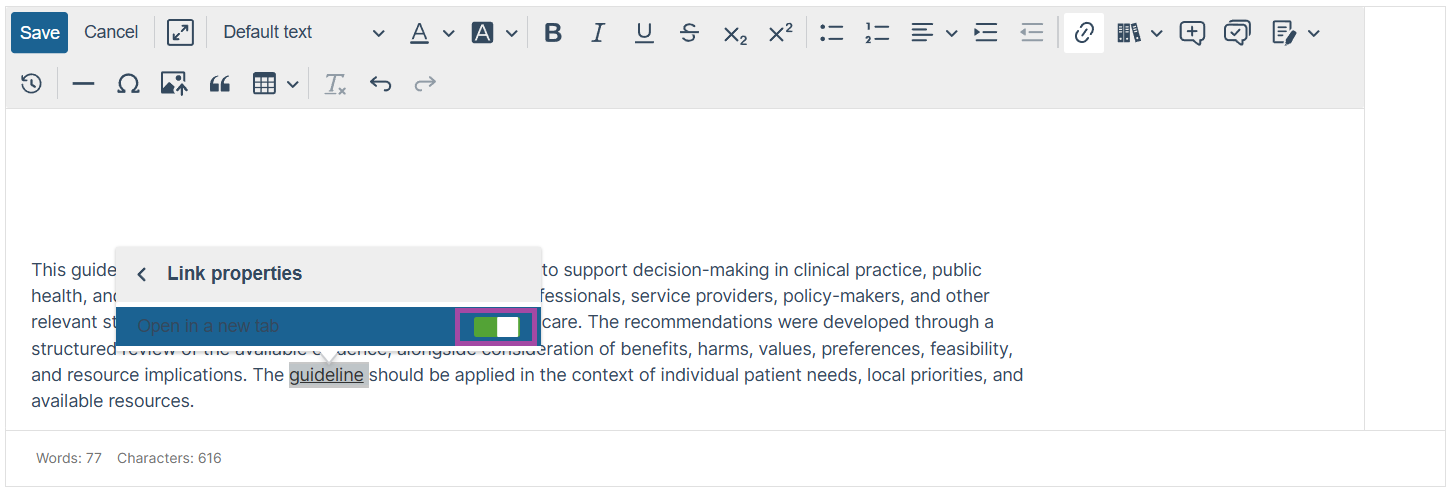
- To choose whether a link opens in the current or a new tab, hover over the link and select 'Link properties', and toggle 'Open in a new tab'.
Add
Remove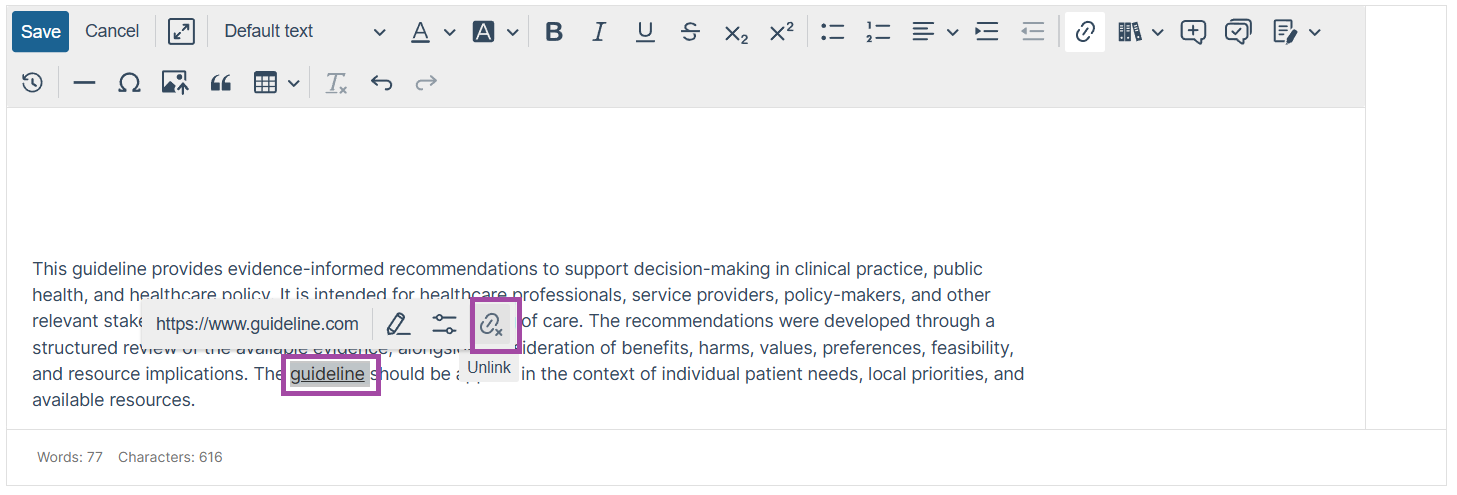
Edit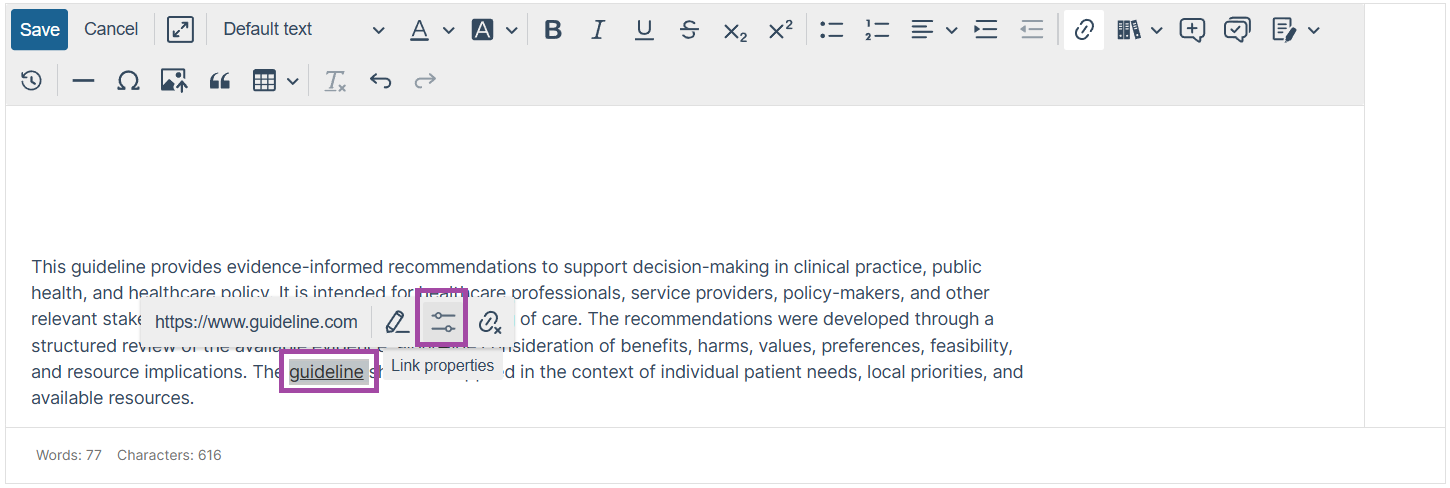
Add citation
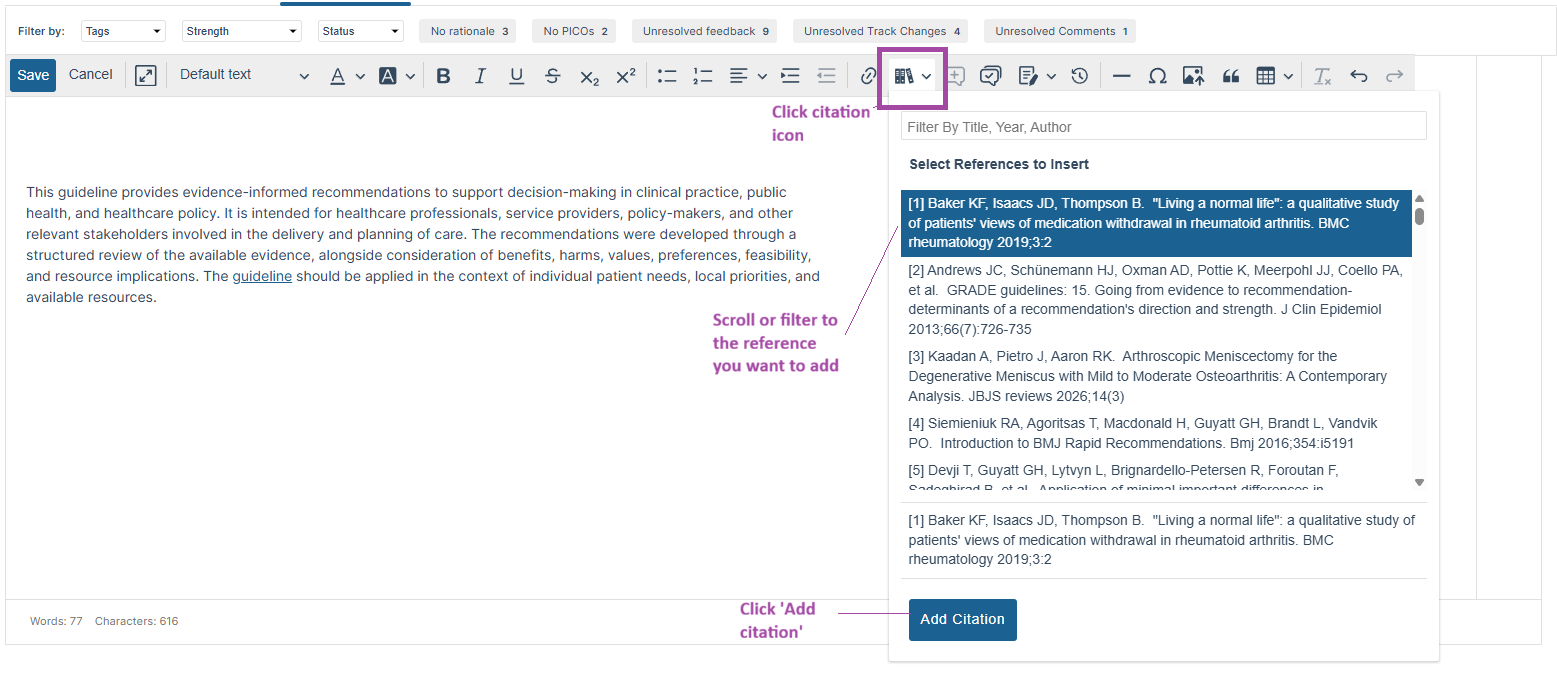
Click the citation icon, and your reference library will pop up - you can select one or multiple citations to add. You can view citation details by hovering over it. Tip: You can customize how citations are displayed in PDF outputs., including whether citations are square brackets or parentheses. To see learn more about customizing your PDF, see How do I make a PDF version of my guideline (with or without publishing)?
Track changes and add comments
To learn more about tracking changes and adding comments, see Track changes and comments feature.
Review text revisions
To learn more about viewing text revisions over time, see View and Compare Text Revisions.
Add image/figure to text
To learn more about adding figures, see How do I add or remove a figure in the main text?
Add and edit tables
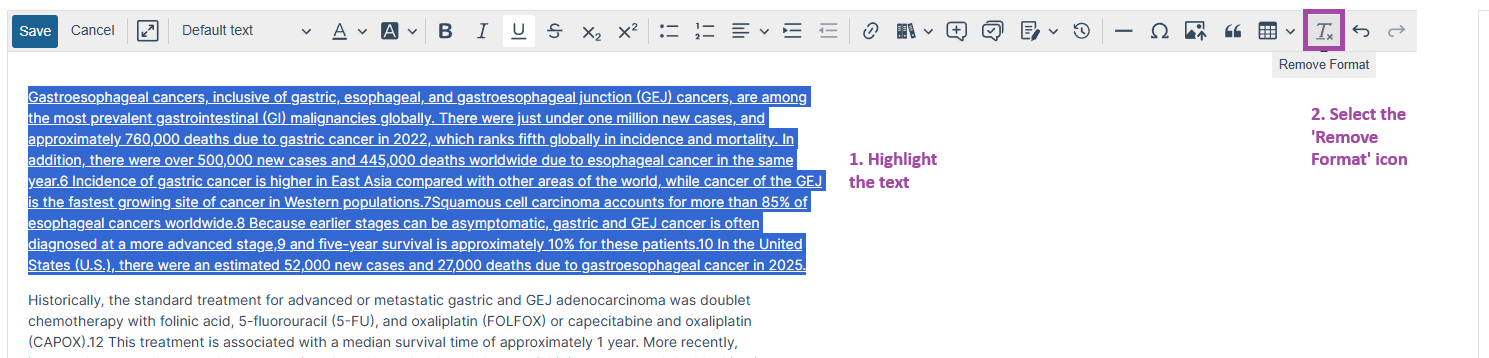
You can add a table by selecting the 'Insert' table icon, or by pasting a copied table into the text editor. When you paste a table directly into MAGICapp, formatting from the source document (such as fonts, colors, borders and shading) will also be carried over. This formatting may not match the rest if your guideline content. To remove the formatting, use the 'Remove format' tool (see below).
To edit a table, click inside any cell to open 'Table options'. From here, you can:
- add or remove rows and columns
- add or remove row and column headers
- merge or split cells
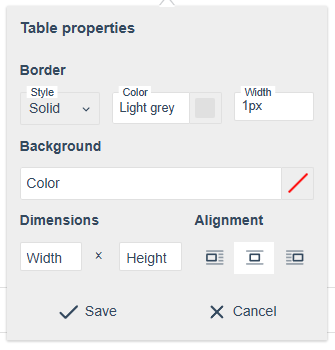
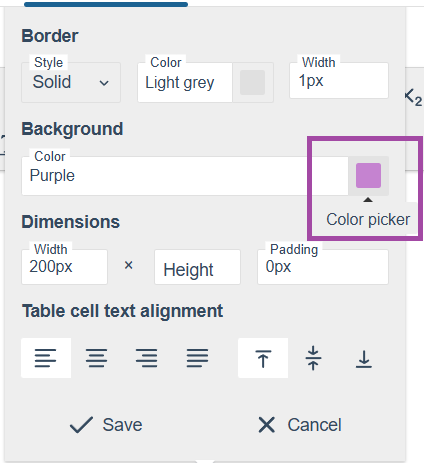
- edit table properties (including border style, background color, dimensions and alignment)
- edit cell properties (including border style, background color, dimensions and text alignment)
- add or remove a table caption
To apply formatting, such as background color and text alignment to one or more cells (for example, the header row), highlight the cells and click on the 'Cell properties' icon.
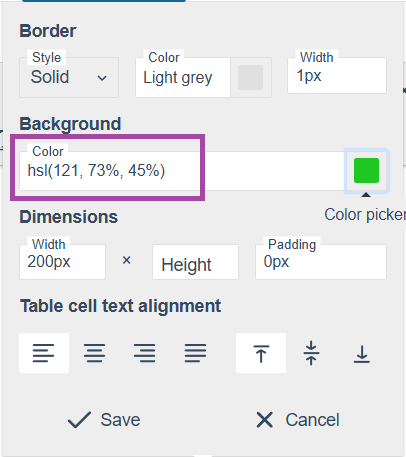
Using custom colors: In the color picker there are default options, but you can also add bespoke colours by entering the color in the 'HSL' format (see screenshots below).
Note: Tables can occasionally cause formatting or display issues, particularly in PDF outputs. If you experience problems, please see Troubleshooting issues with PDF formatting.
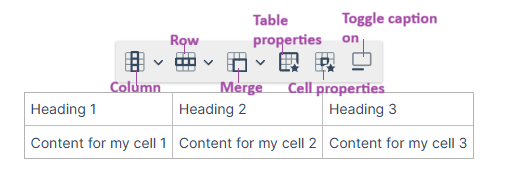
Table properties menu
Cell properties menu
Remove formatting
Sometimes when you paste from documents (PDF, Word) into MAGICapp's text boxes, they have formatting that may or may not be visible while editing, but that are affected when you export your content (PDF, Word). To remove formatting, highlight the text you want formatting removed from, and select the Tx button.
Last Updated: 22 October 2026
Was this article helpful?
That’s Great!
Thank you for your feedback
Sorry! We couldn't be helpful
Thank you for your feedback
Feedback sent
We appreciate your effort and will try to fix the article