Issues can occasionally occur when adding figures — for example, images may appear blurry or fail to upload. These problems are often resolved by using an appropriate source file, supported file type, and suitable image size.
Source of your figure
For the best quality image, always export images from the original file (e.g., design software). Avoid using screenshots, images copied from websites, or enlarging small images. If the original image is of low quality, it cannot be improved after upload.
Figure file types
For logos, diagrams, charts and tables, we recommend using SVG (Scalable Vector Graphics) files, as these remain sharp at any size. For photos or complex images, we suggest using high-quality JPG, PNG, or WebP files, with a preference for WebP files when they are available, as they have better quality and compression.
Important notice October 2026: We are aware of an issue affecting the upload of SVG files as figures/images in MAGICapp. These file types may fail to upload or may not display correctly after upload. As a workaround, please convert the file to a supported image format (for example, PNG) before adding it as a figure. We apologize for the inconvenience while we work on resolving this issue.
Figure size and resolution
We recommend using high-resolution images, for example images with 200–300 DPI. Avoid using images at 72 DPI, which are commonly downloaded from websites. Although low-DPI images often look fine in the MAGICapp editor, they can appear blurry in the PDF version of your published MAGICapp guideline.
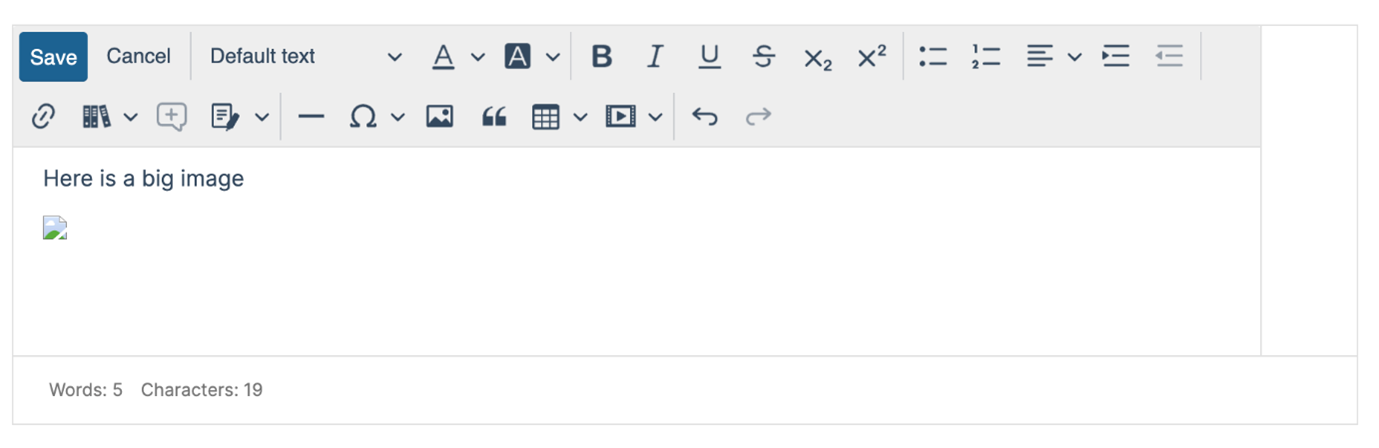
Additionally, avoid uploading very large files. We don't have a specific size limit, so in the upload dialog there will be no warning. Extremely large images may appear to upload successfully (Fig 1) but then convert to a generic icon (Fig 2). This indicates the file size must be reduced.
If you cannot reduce the image size and the figure is essential, consider uploading it as a supplementary file. See: How do I add a supplementary file to a guideline (e.g. annex, large image/table)?
Fig 1. Upload image into text - everything looks fine
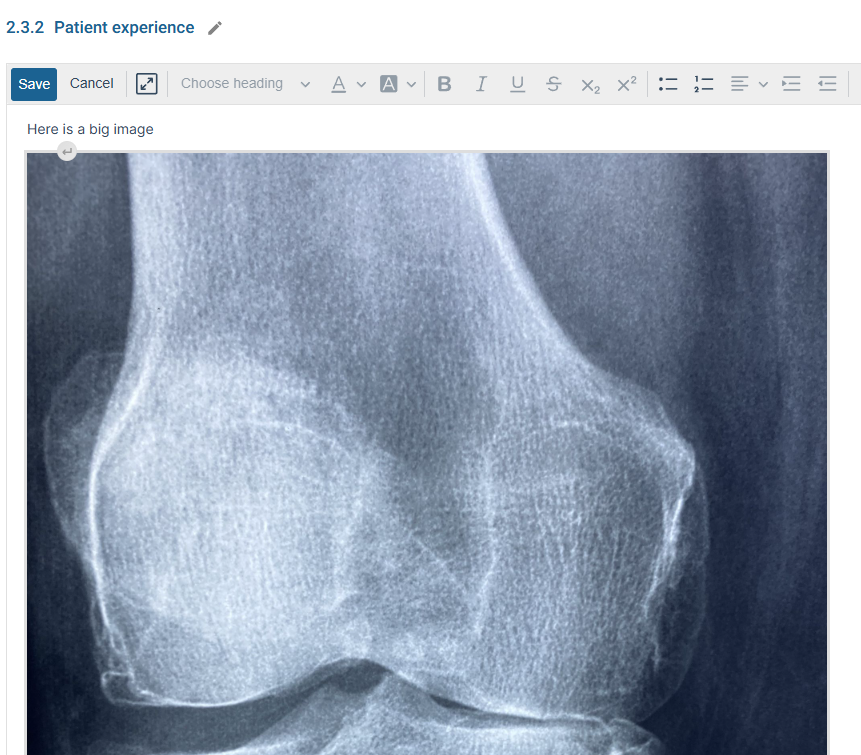
Fig 2. The image will then become a generic icon - an indication that you will have to decrease the image size.
Still having problems?
If figure issue persists after trying the suggestions above, please contact the MAGIC support team on support@magicevidence.org and include:
- A link to the guideline.
- The location within the guideline.
- A description of the issue.
- Screenshot(s) showing the issue.
Last updated: 08 October 2026
Was this article helpful?
That’s Great!
Thank you for your feedback
Sorry! We couldn't be helpful
Thank you for your feedback
Feedback sent
We appreciate your effort and will try to fix the article