Adding a user to a draft
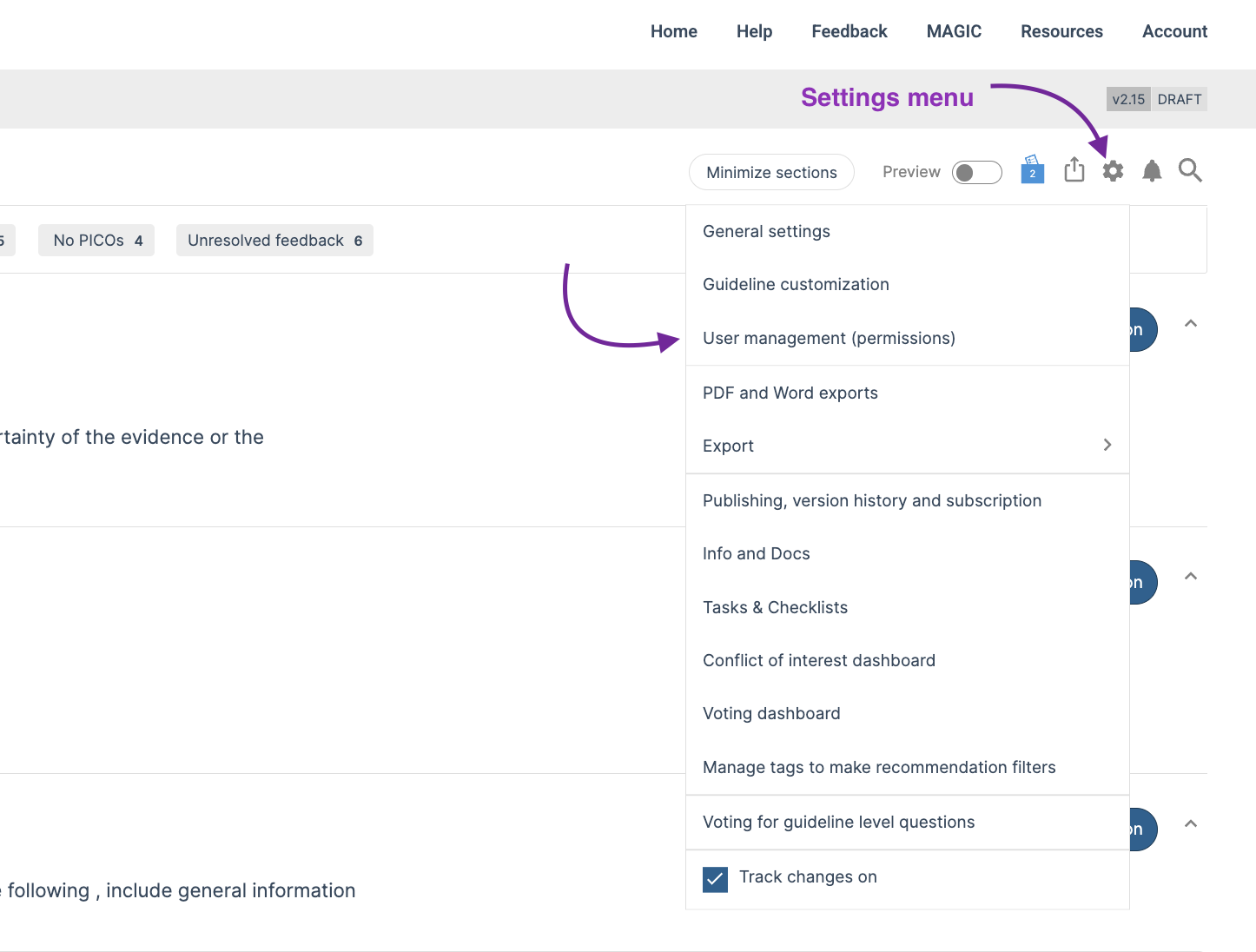
To add authors, admins, reviewers and viewers to a guideline draft, in editing mode go to the guideline settings (gear icon), and then User management (permissions). For more information about the four types of guideline role and their permissions, please see Who can do what? Access and permission levels.
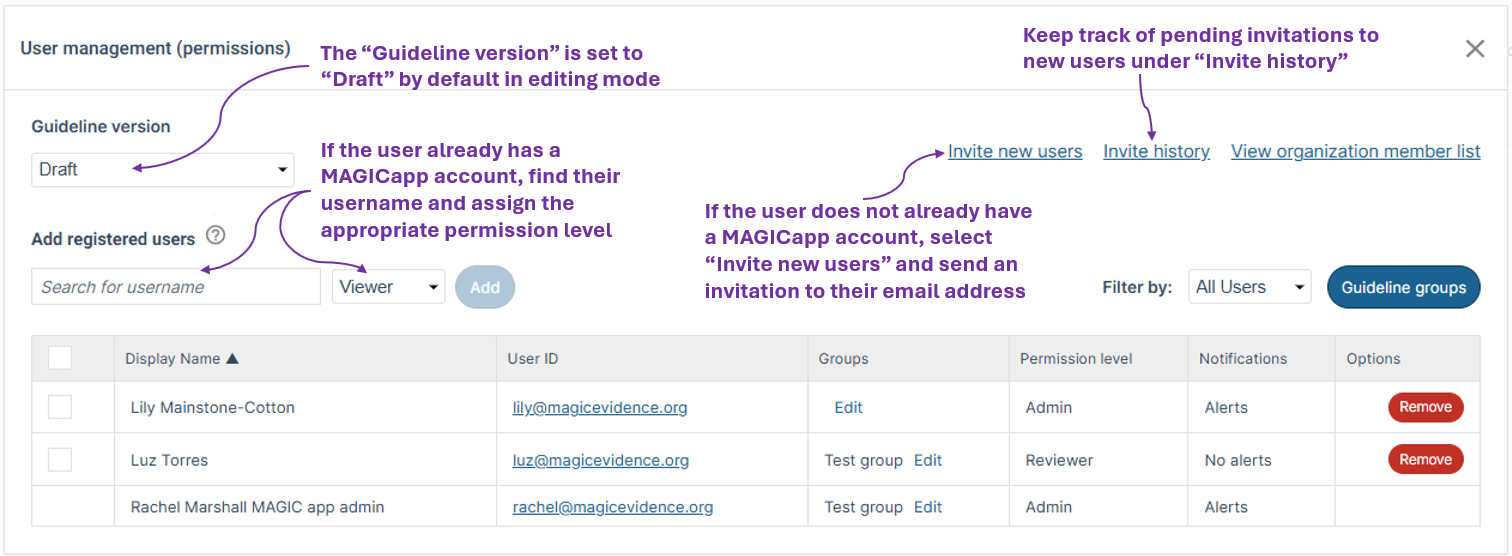
If the user already has a MAGICapp account, find their username and assign the appropriate role. If they do not have a MAGICapp account, select Invite New User and send an invitation to their email address. You can monitor outstanding invitations in Invite history, where you can also revoke invitations as needed.
Once a user is included in the permissions list of a draft, they will remain on that list in all subsequent versions unless they are manually removed.
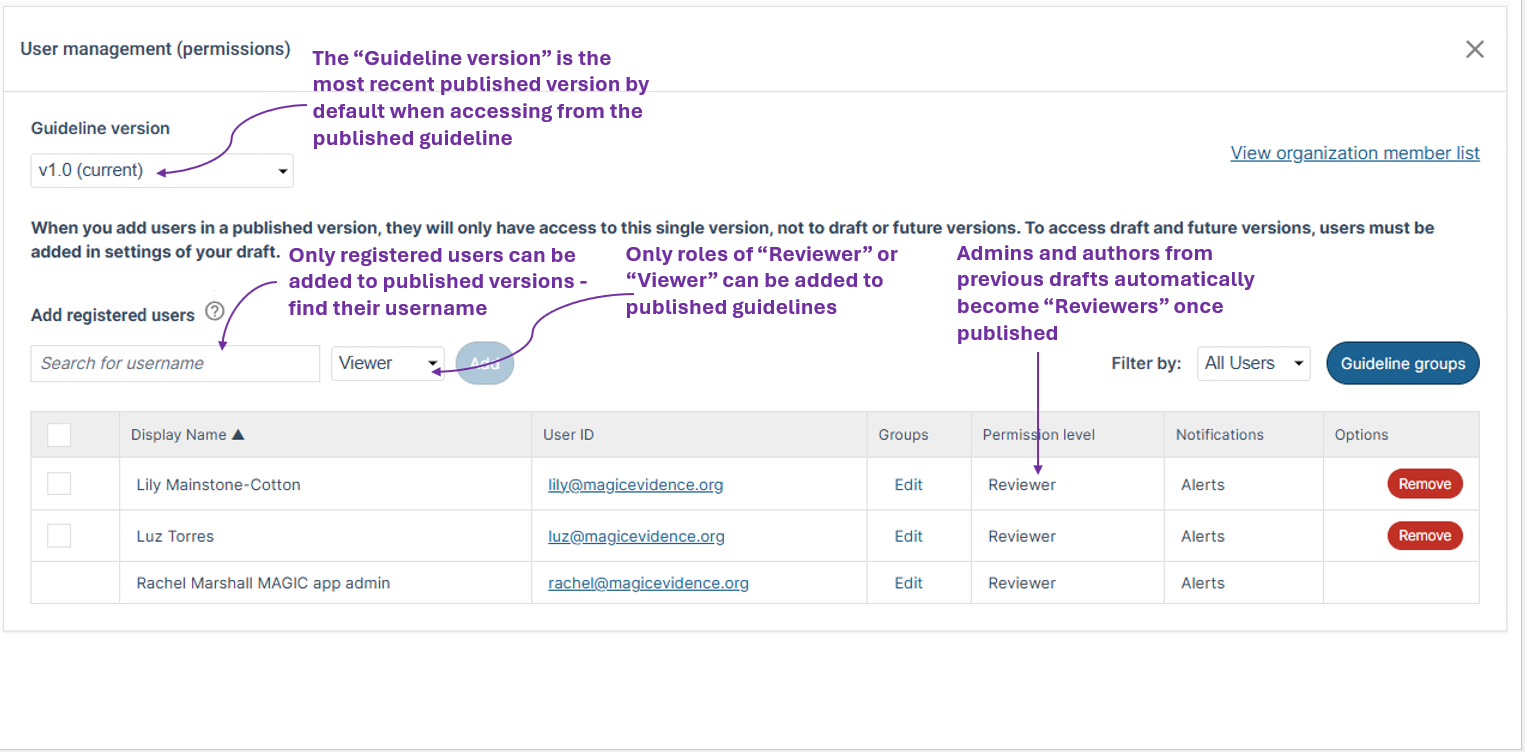
Published versions can only have the reviewer or viewer role assigned. This is because published versions cannot be edited, and therefore the admin and author roles are available only in drafts. When a new version is published, users who had the admin or author role automatically become reviewers on that published version.
You can grant access to a published version either from the draft, or from the published version itself without the need to republish the guideline.
From the draft:
- Go to the guideline settings (gear icon), then User management (permissions). Select the Guideline version to which you want to grant access, and add registered users by searching for username.
From the published version (republishing not required):
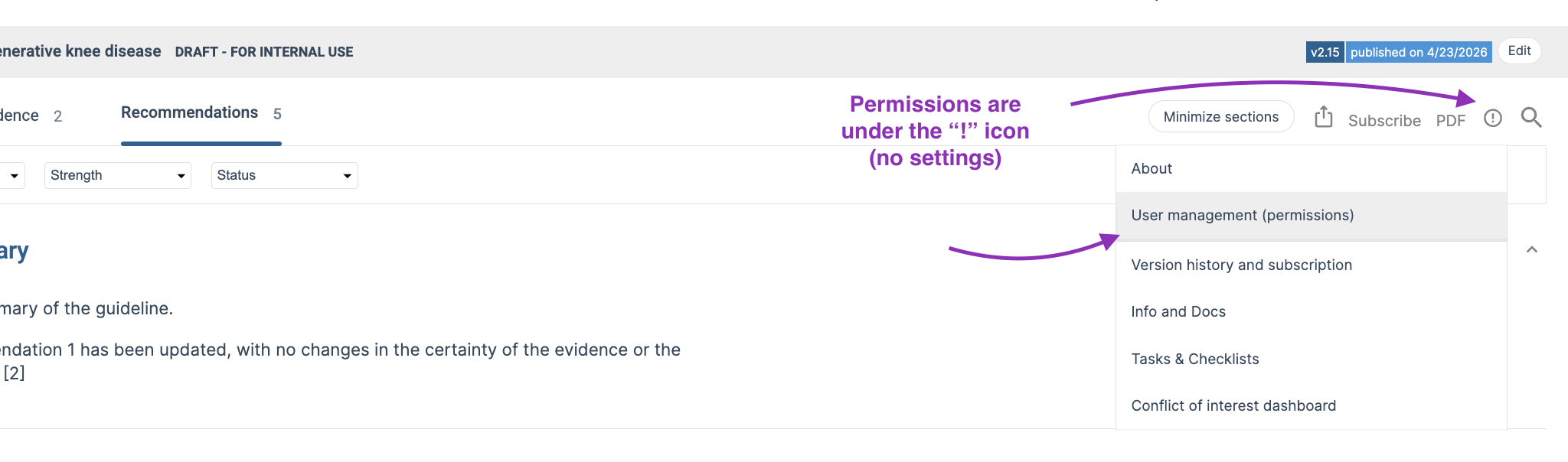
- Open the published guideline, go to Information (! icon), then User management (permissions). Select the Guideline version to which you want to grant access, and add registered users by searching for username.
Users who are added to a published version will not have access to the draft or to subsequent versions unless they are also granted access to those versions.
For more information about versions and access, see Versioning and labels: understanding, accessing, and managing guideline versions.
Update permissions for multiple members
You can select multiple members to email, assign to groups, or update their permission level at the same time. Start by selecting the members you want to include. Once more than one member is selected, the options Email, Set Groups, and Permissions appear at the bottom of the member table.
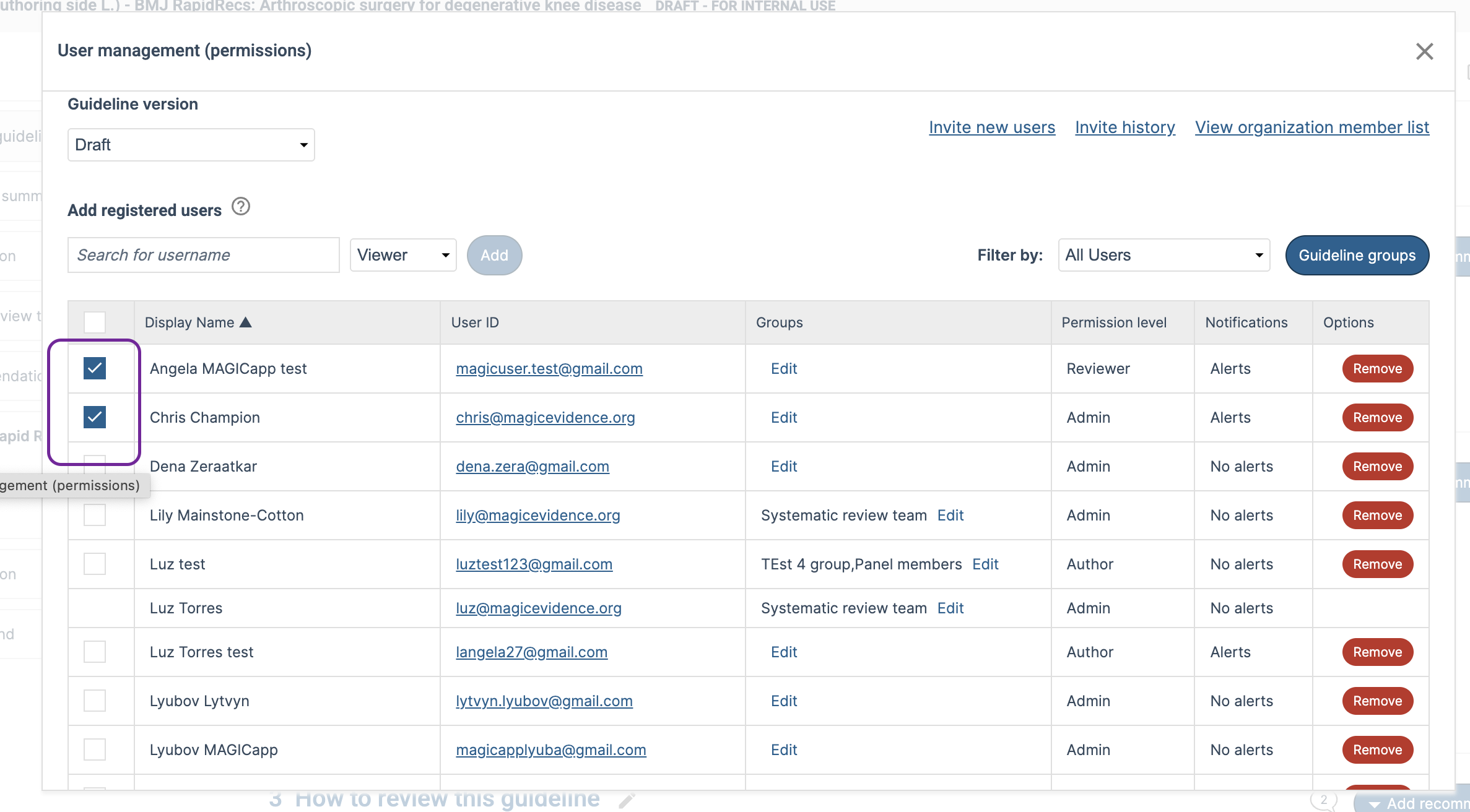
Selecting Permissions opens a pop-up window where you can choose and apply a new permission level to all selected members.

Was this article helpful?
That’s Great!
Thank you for your feedback
Sorry! We couldn't be helpful
Thank you for your feedback
Feedback sent
We appreciate your effort and will try to fix the article