Jump to:
- Uses of guideline groups
- How guideline groups relate to organizational groups
- How updates to members of guideline groups work
- What you can and cannot edit in guideline groups
- Create a guideline group
- Add or remove people from a guideline group
- Edit a group or remove a group from a guideline
Guideline groups are groups of contributors that exist within a single guideline. They help you organize people who share a similar role or function in that guideline, such as panel members, reviewers, or a steering group.
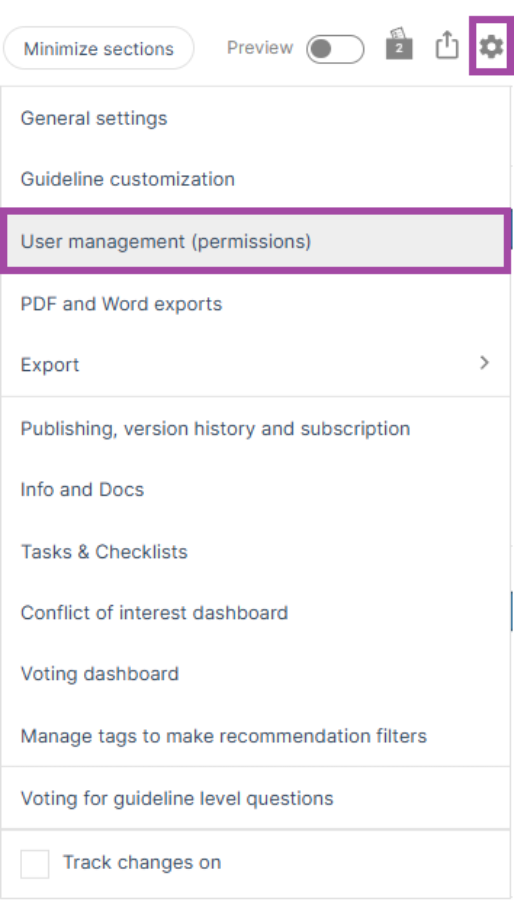
You can access guideline groups from within the guideline by selecting the Settings icon and choosing User management (permissions).
Uses of guideline groups
Guideline groups help you structure and manage contributors within a guideline. They are useful when you want to:
- Organize contributors by role or function (e.g., Panel members, Steering group, Evidence team, Editors)
- Group people involved in a specific part of the guideline process
- Manage contributors who are not part of an organizational group (see Organizational control panel - Organizational groups for more information)
- Customize how contributors appear and are grouped inside a guideline
- Track who is involved in the guideline
How guideline groups relate to organizational groups
Some guideline groups originate from organizational groups. When an organizational group is added to a guideline, it becomes a guideline group inside that guideline, and it behaves like any other guideline group. If the organizational group changes later, the newly formed guideline group does not update automatically.
How updates to members of guideline groups work
- If you add a new person to a guideline group, they are automatically added to the guideline with the permission level assigned to that group. Any existing members of the guideline group are not duplicated or changed.
- If you remove a person from a guideline group, they are automatically removed from the guideline unless:
- they belong to another guideline group, or
- they were added individually with their own permission level
In these cases, the person will still retain access to the guideline.
What you can and cannot edit in guideline groups
If you have guideline administrator permissions, you can:
- Add or remove people from the guideline group
- Edit the guideline group name (this changes the guideline group name only)
- Remove the group from the guideline (this removes the group only; it does not remove individuals from the guideline)
You cannot:
- Assign the same permission level to all group members in bulk (permissions must be set individually)
- Modify the organizational group
Create a guideline group
To create a new group within a guideline:
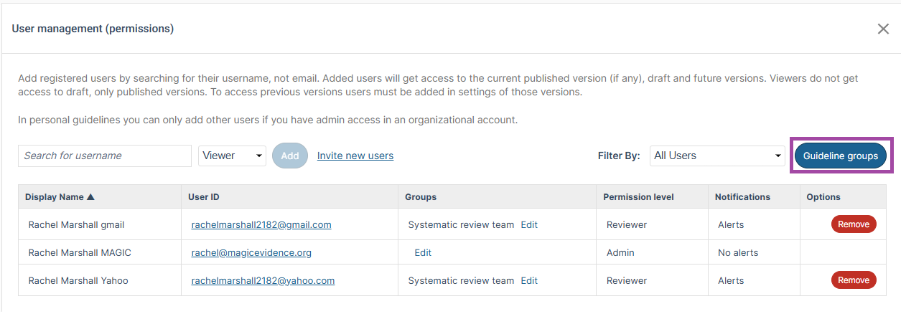
- In the guideline, select the Settings icon and choose User management (permissions)
- Select Guideline groups
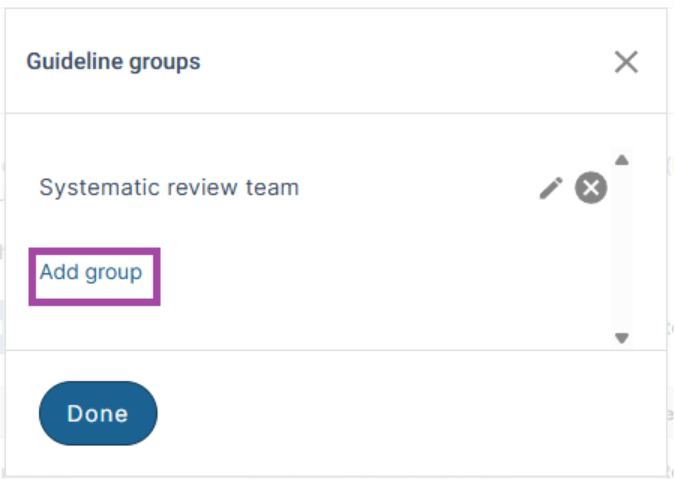
- Select Add group
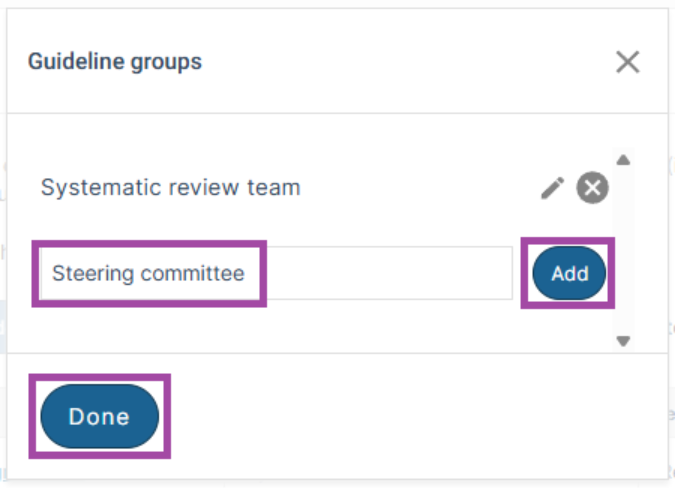
- Enter a meaningful name for the group, then select Add, and then Done
Note: If you have organizational administrator permissions, you can also add an organizational group from the organizational control panel. When added to a guideline, it becomes a guideline group. See Organizational control panel - Members and Organizational control panel - Organizational groups.
Add or remove people from a guideline group
To update group membership:
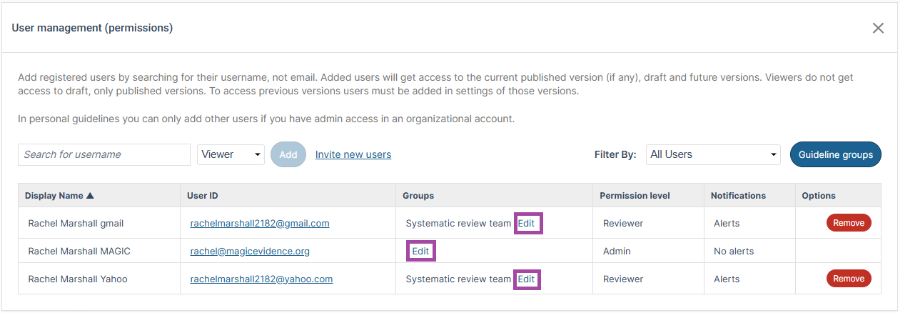
- Within the guideline, select the Settings icon, and choose User management (permissions) in the drop-down menu
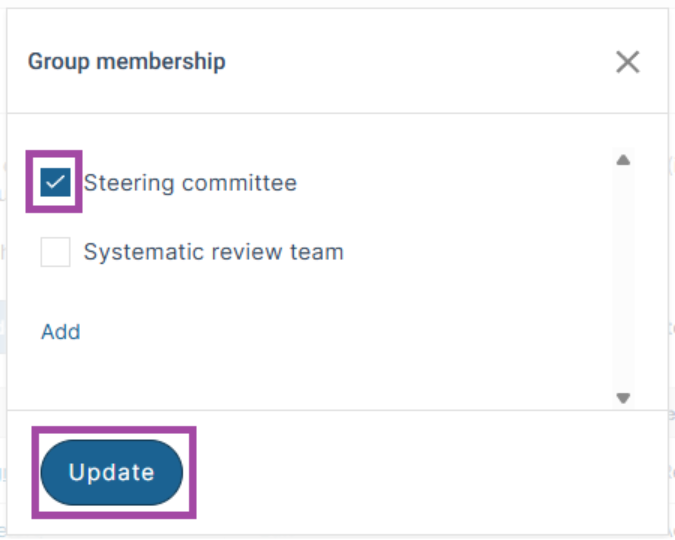
- In the Groups column of the table, select Edit in the row for each person you want to edit
- Select (or deselect) the relevant group from the list and select Update
Edit a group name or remove a group from a guideline
To edit or remove a group from a guideline:
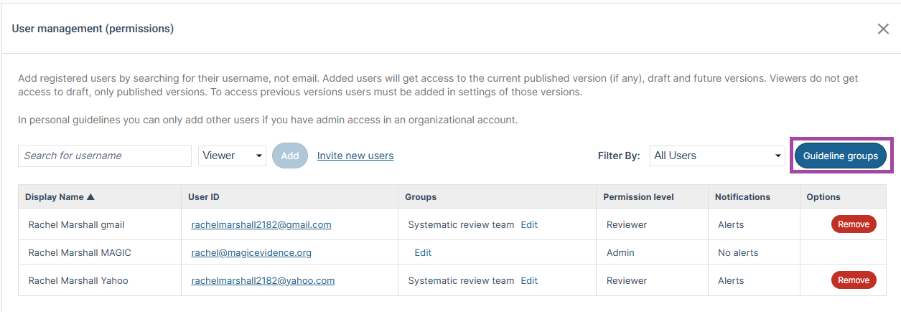
- Within the guideline, select the Settings icon, and choose User management (permissions) in the drop-down menu
- Select Guideline groups
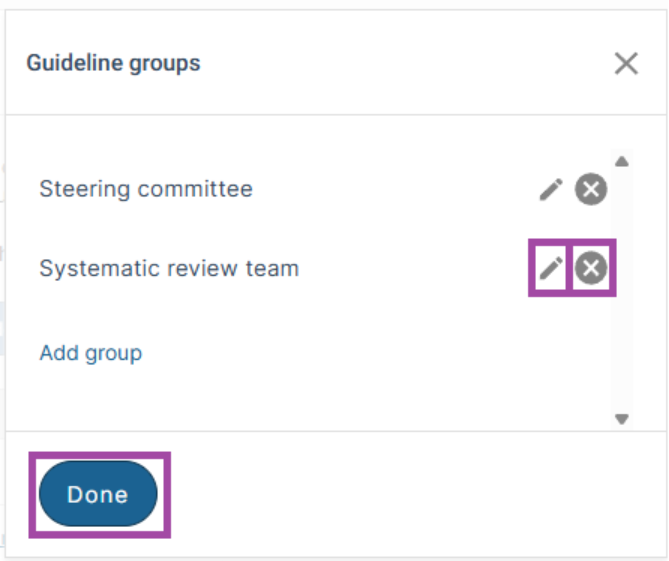
To edit a group name:
- Select on the pencil icon, enter a meaningful name for the group, then select Save, and then Done
To remove:
- Select on the X icon next to the Group to delete, then select Done
Note: If you remove a group from a guideline, the individuals in that group—and any guideline permissions they hold (viewer, reviewer, author, or admin)—will remain. To remove individuals from the guideline, go to User management (permissions) and select Remove in the row for each person you want to remove.
Added: 30 June 2026
Was this article helpful?
That’s Great!
Thank you for your feedback
Sorry! We couldn't be helpful
Thank you for your feedback
Feedback sent
We appreciate your effort and will try to fix the article